DeskTime does not publish a dedicated mouse-jiggler detector, and it openly says a jiggler can make you look active. By default it counts mouse movement and clicks as activity, so cursor motion keeps its 3-minute idle timer from starting. DeskTime's answer is a setting rather than a detector: administrators can stop counting mouse movement and clicks, leaving keyboard input as the only activity signal. Separately, DeskTime records which apps, websites, and documents were open in 5-minute segments, and on Premium plans it takes screenshots. A jiggler changes none of that.
So the honest answer is "not directly, but it may not matter." Below, we explain what DeskTime actually measures, the exact setting that cancels out a mouse-only jiggler, what a manager sees on the productivity bar, and the vendor-supported way to stop going idle in meetings. Every claim comes from DeskTime's own website and help center as of October 4, 2026.
What employees should know
- DeskTime says a mouse jiggler "could show the user as falsely active." It does not claim to detect one.
- Idle time starts after 3 minutes without keyboard or mouse action. Admins can lengthen that period.
- Admins can untick Track mouse movement and Track mouse clicks for the account, a team, or one person.
- The productivity bar shows apps, URLs, and document titles in 5-minute blocks, and screenshots (Premium and Enterprise) show the screen itself.
- For meetings and training videos, DeskTime's Meeting and video time tracking is the supported fix.
In this guide
The Short Answer: DeskTime Admits the Gap and Offers a Switch
Some trackers now advertise jiggler detection. Insightful markets an activity-verification feature, and Time Doctor describes an Unusual Activity Report that flags simulated input. DeskTime takes a different approach. On its screenshot feature page it says plainly that because "DeskTime uses mouse movements and clicks to determine a user's activity," a mouse jiggler could show the user as falsely active.
The remedy DeskTime suggests is to "turn off mouse movements and/or clicks as activity tracking measurements." That does not identify a jiggler. It removes the signal a jiggler fakes. A search of DeskTime's help center on October 4, 2026 returned no articles about jiggler detection, so we treat pattern-based detection inside DeskTime as undocumented. That could change in a future release.
Detection is also bigger than one app. Your employer can compare DeskTime data with output, calendars, chat activity, and endpoint management tools. Our overview of how employers detect mouse jigglers covers that wider picture.
What DeskTime Tracks During Your Workday
Keyboard and mouse input
DeskTime uses input to decide whether you are active. Its macOS permissions guide says the app needs Accessibility access "to detect basic input activity, such as mouse movements and keyboard clicks," and that it "only tracks the fact that an input occurred." DeskTime says it does not record what you type or exactly where you click.
Idle time
DeskTime's glossary defines idle time as a gap that appears when there have been no actions on the computer for more than 3 minutes. The tray icon changes to an idle state at that point. Administrators can increase the threshold in account settings. Idle time is not counted as DeskTime time, so it reduces your tracked hours and pushes down your effectiveness against the daily minimum.
Apps, websites, and document titles
Every DeskTime plan includes URL and app tracking and document title tracking. Each app or site is classed as productive (green), unproductive (orange), or neutral (gray), and these classes can differ between teams. On macOS, DeskTime asks for Screen Recording permission to read window titles and Automation permission to read the active browser tab's URL.
Productivity and effectiveness
DeskTime calculates Productivity as productive time divided by total DeskTime time. Effectiveness is productive time divided by the minimum hours your employer sets. A jiggler can keep the clock running, but it cannot turn an unproductive or neutral app green. Moving the mouse over an unrelated window adds time in the wrong category.
Screenshots
Automatic screenshots are available on the Premium and Enterprise plans. DeskTime takes them at random times within 5, 10, 15, or 30-minute intervals, can blur them, and marks captures taken in unproductive apps as "suspicious." Employees can see their own screenshots on their My DeskTime page. Private Time pauses all tracking, including screenshots.
| Signal | What DeskTime records | What a jiggler changes |
|---|---|---|
| Mouse movement and clicks | That input occurred, unless the admin turned these off | Prevents idle time only while mouse input is counted |
| Keyboard input | That a key was pressed, never which key | Nothing, unless the tool also sends keystrokes |
| Idle time | Gaps after 3+ minutes with no counted input | Can hide gaps when mouse input counts |
| Apps, URLs, document titles | What was in focus, classed by productivity | Nothing: the same window stays on record |
| Productivity bar | Color-coded 5-minute segments with apps and URLs | A long, unchanging stretch can stand out |
| Screenshots (Premium+) | Random captures; unproductive-app captures flagged | Nothing: the screen looks the same |
The Setting That Cancels Out a Mouse Jiggler
This is the most important fact for jiggler users. DeskTime's help center says that to stop counting mouse input you go to Settings → Account (whole company), Teams (one team), or Team Members (one person), open the Tracking tab, and untick Track mouse clicks and Track mouse movement. Both options are on by default.
With mouse tracking off, only keyboard input keeps a session active. A mechanical mover, USB dongle, or mouse-only software jiggler would then do nothing to the idle timer. Time would fall into idle after the usual threshold, and the employee might not notice. You cannot see this setting from the employee side, so do not assume the defaults are still in place.
The setting can also be applied to one person. An employer that suspects a single employee could turn off mouse tracking just for that profile. Your tracked hours would then suddenly drop while your routine stayed the same, with no visible notice. On macOS, DeskTime's documentation notes that disabling either mouse setting triggers an Accessibility permission prompt, because the app needs deeper access to ignore mouse events. An unexpected Accessibility prompt is therefore a clue that these settings changed.
If the screen stays still but the keyboard does not, that is what keyboard jigglers try to simulate. They carry their own risks, such as typing into the wrong window or triggering shortcuts, and they still leave the productivity bar and screenshots unchanged.
What a Manager Sees on the DeskTime Timeline
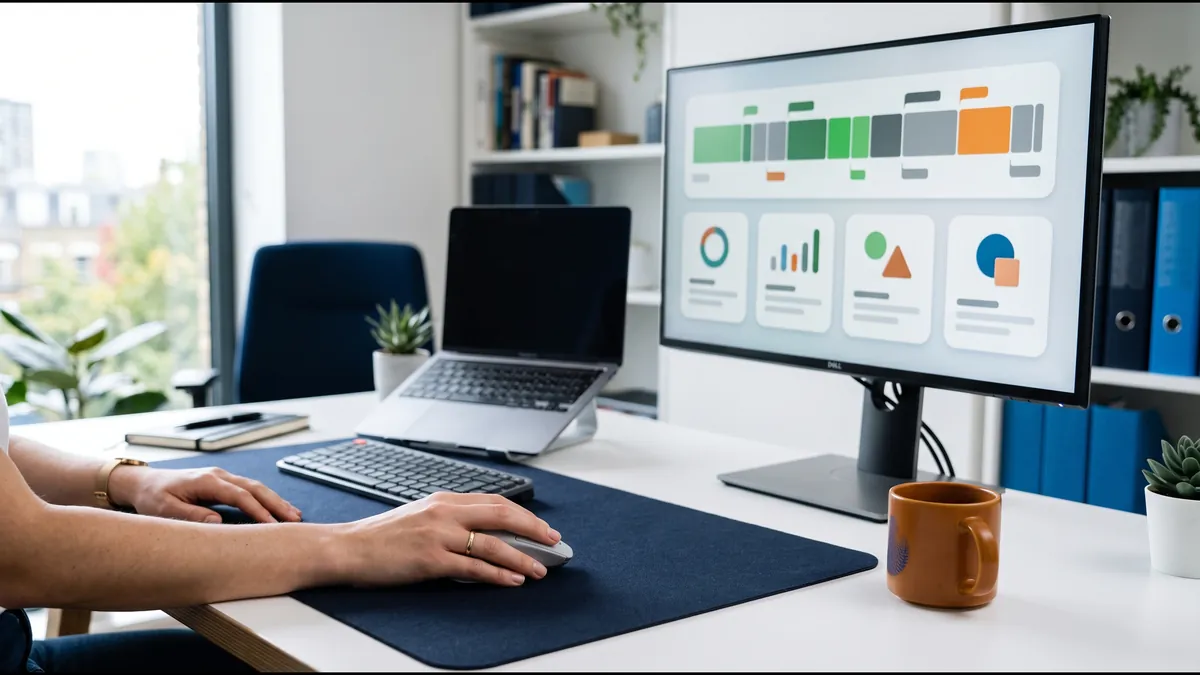
The Productivity Bar is a visual timeline of the day in 5-minute segments, colored by productivity level and labeled with the apps and URLs used. This is where jiggler use is most likely to stand out to a person, even without an automated detector.
- One app for hours. Real work moves between email, documents, chat, and browser tabs. A long run of identical segments on one window looks different.
- Activity with no matching output. A full green or gray bar alongside an empty ticket queue, no commits, or unanswered messages invites questions.
- Static screenshots. On Premium plans, several random captures showing the same unchanged screen while the timeline says you were active undercut the record.
- Suspicious flags. If the window left open is classed as unproductive, its screenshots are automatically marked suspicious.
- Arrival and left times. DeskTime records the first and last tracked activity of the day. Activity that runs past normal hours, or through lunch every day, can look unusual.
None of these prove a jiggler was used. They are patterns a manager can see and ask about. The same patterns can come from legitimate work, which is why the next sections matter.
DeskTime Detection Risk by Mouse Jiggler Type
| Type | Effect on DeskTime idle time | What can still show | Biggest weakness |
|---|---|---|---|
| Mechanical mover | Prevents idle while mouse movement is counted | Unchanged app segments, static screenshots | Useless if the admin disables mouse tracking |
| USB jiggler | Same as above | Same, plus OS and endpoint device records | Device logs exist outside DeskTime |
| Mouse-only software | Same as above | Same, plus a running process | Software inventory tools can list it |
| Multi-signal software | Can also send keyboard input | Wrong-window input, unchanged context, screenshots | More signals mean more ways to look unnatural |
| Browser wake lock | None: it keeps the screen on but sends no input | Idle gaps appear after 3 minutes | Does not address DeskTime at all |
The last row confuses many people. A browser-based keep-awake page stops the screen from sleeping, which helps with display timeouts and some chat-status issues. It does not create keyboard or mouse events, so DeskTime will still log idle time. For the device-level evidence behind the USB row, see how USB jigglers are detected.
A mouse jiggler such as ours can generate varied mouse, keyboard, scroll, and app activity. Against DeskTime, the honest framing is that no feature set can promise invisibility. Extra input can land in the wrong window, and it cannot change which app is classed as productive or what a screenshot shows.
Meetings, Videos, and Legitimate Idle Time
Many people look for a jiggler because DeskTime marks real work as idle: a 45-minute video call, compulsory training, a long render, or reading a contract. DeskTime offers a supported fix for the most common case.
Meeting and video time tracking. When an administrator enables it, DeskTime detects time in online meeting and communication apps such as Zoom, Microsoft Teams, and Google Meet, and on video sites like YouTube or Udemy, and counts it as productive instead of idle. DeskTime says employees can then join meetings or watch tutorials "without interacting with their laptops." It is turned on under Settings → Account → Tracking → Activity tracking, or per team. It needs DeskTime Windows 1.3.661 or newer, or Mac and Linux 6.0.0-alpha.56 or newer.
For work DeskTime cannot see at all, it offers Offline time: you fill the gap on the productivity bar with what you were doing, such as a phone call or a site visit. On Premium plans, administrators can require approval for offline entries. Calendar integration with Google and Outlook can also log meeting time automatically.
- Ask whether Meeting and video time tracking is on for your team before reaching for a workaround.
- Log offline time promptly while you still remember the task.
- Use Private Time for personal breaks, so personal browsing is not recorded as idle or unproductive.
- Ask for app categories to be corrected when a tool you need for work is marked unproductive or neutral.
If your status in chat apps is the real problem rather than DeskTime, our guide on keeping Microsoft Teams active covers what Teams presence actually responds to.
If Your DeskTime Data Is Questioned
"DeskTime shows you were idle" or "your timeline looks odd" can mean several different things. Ask for the specific day and time range, and whether the question is about idle time, an unproductive app, a screenshot, or arrival and left times.
- Get the exact interval. Look at the productivity bar segment and any screenshots for that window.
- Match it to your work. Check calendar entries, tickets, files, messages, and deliverables from that time.
- Explain low-input work. Reading, calls on another device, training, and long-running tasks are legitimate reasons for little input.
- Use approved corrections. Add offline time or ask for an app's productivity category to be fixed rather than editing around the record.
- Ask about settings. Find out whether mouse tracking, the idle threshold, or meeting tracking changed recently for your profile.
- Be straight about policy. If automated input is prohibited where you work, stop using it rather than trying to disguise it.
Policies and employment law vary by employer and location. This guide is general technical information, not legal advice. For a deeper look at DeskTime from the time-tracking side, our partner site Trick Tack has a DeskTime activity guide.
DeskTime Mouse Jiggler FAQ
Can DeskTime detect a mouse jiggler?
DeskTime does not document a dedicated mouse-jiggler detector. It openly says a jiggler can make a user look falsely active, because mouse movement and clicks count as activity by default. Administrators can respond by turning off mouse movement and clicks as activity signals, and the productivity bar and screenshots still show what was actually on screen.
How long before DeskTime marks me idle?
DeskTime's help center says idle time starts when there has been no keyboard or mouse action for more than 3 minutes. Administrators can set a longer idle period in the account settings. Idle time appears as a gap in your tracked time rather than as productive or unproductive time.
Can my employer make DeskTime ignore mouse movement?
Yes. DeskTime documents a Tracking tab setting with separate checkboxes for Track mouse clicks and Track mouse movement. It can be changed for the whole account, a team, or one team member. With both unchecked, only keyboard input keeps you active, so a mouse-only jiggler stops preventing idle time.
Does DeskTime record what I type?
DeskTime says it only tracks the fact that an input occurred to confirm you are active. Its macOS documentation states it does not record what you type or exactly where you click. It does track applications, websites, and document titles, which reveal what you were working on.
Do DeskTime screenshots show a jiggler?
Screenshots can show a static screen while the activity record says you were active. DeskTime screenshots are a Premium and Enterprise feature, taken at random times within 5, 10, 15, or 30-minute intervals. Captures taken while an unproductive app is open are marked suspicious for review.
Can DeskTime see a USB mouse jiggler?
DeskTime only sees the input the device produces, not the device itself. A USB jiggler can leave records in the operating system or endpoint management tools outside DeskTime. The activity it creates is still judged against the apps, websites, and screenshots in your DeskTime record.
How do I stop DeskTime going idle in meetings?
Ask your administrator about DeskTime's Meeting and video time tracking setting. When enabled, time in apps like Zoom, Microsoft Teams, and Google Meet, or on video sites, is counted as productive instead of idle. This is the vendor's own answer to low-input work and is safer than simulated movement.
Is it safe to use a mouse jiggler with DeskTime?
No tool can promise it is undetectable. A jiggler may keep the idle timer from triggering, but the productivity bar, app and URL history, document titles, and screenshots can still show the session did not match normal work. Use any activity tool only where your workplace allows it.
Sources and Method
Checked on October 4, 2026 against DeskTime's screenshot feature page and help center articles on macOS permissions and mouse-tracking settings, DeskTime terminology, tray icons, meeting and video time tracking, and plan differences. A help-center search for "jiggler" returned no results on that date. No hands-on test results are claimed. Employer settings vary and the product changes over time.
The Bottom Line
DeskTime is unusually candid: it does not claim to catch mouse jigglers, and it admits one can make a user look active. Instead it gives employers a switch that ignores mouse input, and a productivity bar and screenshots that show what was really on screen. A jiggler may keep the idle timer quiet under default settings, but it cannot change which app was open, what a screenshot captured, or whether work got done. If DeskTime is marking real work as idle, the meeting and video setting, offline time, and corrected app categories are better fixes than simulated movement.
Understand your tracker before choosing a tool
Mouse Jiggler offers configurable mouse, keyboard, scroll, and app activity on Windows and Linux. It cannot change DeskTime's app categories or screenshots, and it cannot override workplace policy. Try it free for 7 days.
Download Mouse JigglerSee pricing

