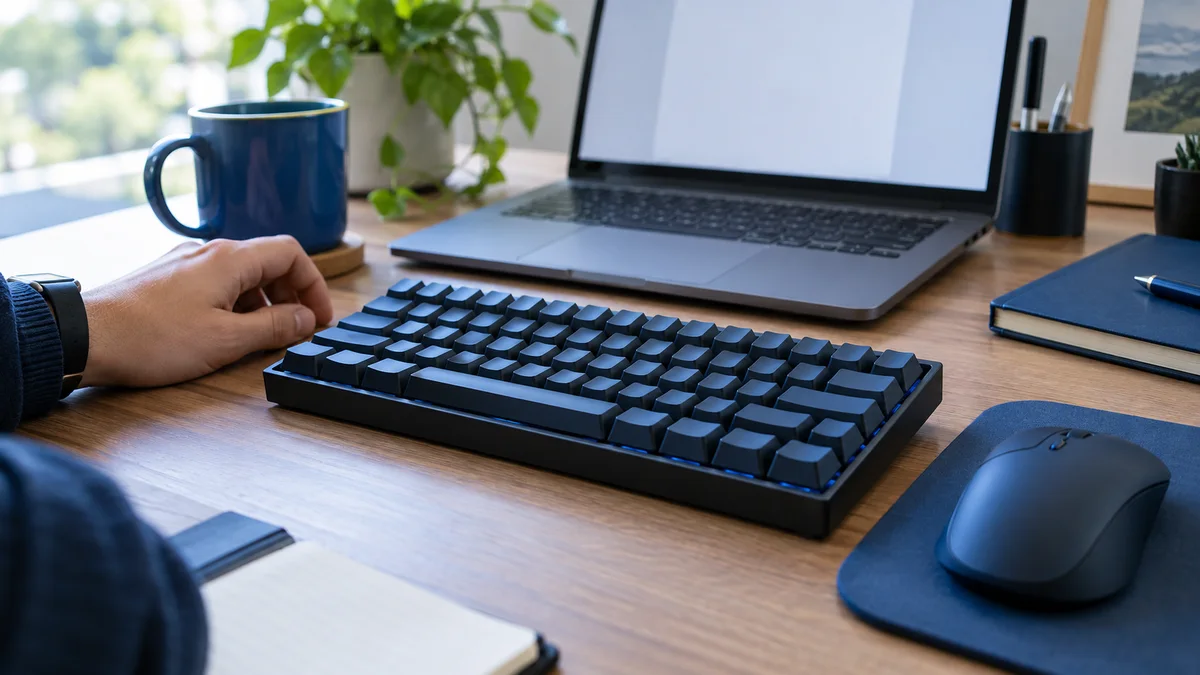
A keyboard jiggler generates repeated key input to keep a computer or application from treating the session as idle. Unlike a mouse jiggler, it acts through keyboard events rather than pointer movement. That difference matters: a key sent to the wrong window can change a document, trigger a shortcut, or interrupt real work.
If you are an employee trying to read, monitor a job, or work through a low-input task, start with the problem you actually need to solve. Keeping a display awake, maintaining a collaboration status, and generating keyboard activity are three different goals. This guide explains the tradeoffs without promising invisibility or recommending that you bypass workplace controls.
Key takeaways
- A keyboard jiggler sends input; a keep-awake utility changes power behavior.
- No key is harmless in every application and configuration.
- Foreground windows and remote sessions can change where input goes.
- Repeated keystrokes do not establish that productive work occurred.
- Use approved power settings when you only need to prevent sleep.
For a focused employee-side explanation, read Mouse Jiggler vs Auto Clicker: Which Action Do You Need?. Compare mouse jigglers and auto clickers by the input they send, the mistakes they can cause, and safer choices for keeping a screen awake or repeating a task.
What Is a Keyboard Jiggler?
The term usually describes software or a device that periodically produces keyboard events. Some utilities repeat a selected key. Others combine keyboard input with mouse movement, scrolling, or window switching. A physical key presser may mechanically operate a key, while software can ask the operating system to synthesize input.
These methods should not be treated as interchangeable. A tool that changes a key’s toggle state behaves differently from one that types characters. A macro that acts within one application is different from a utility that sends input to whichever window is active. Product descriptions should tell you which behavior you are enabling.
For the pointer-only equivalent, our mouse jiggler explainer covers the basics. This article focuses on the additional risks and limits introduced by keyboard input, not a ranking of every keep-awake app.
Keyboard Jiggler vs Mouse Jiggler vs Keep-Awake Tool
| Method | What it changes | Main practical risk | What it does not prove |
|---|---|---|---|
| Keyboard jiggler | Key input or key state | Typing, shortcuts, or application actions | Meaningful typing or completed work |
| Mouse jiggler | Pointer input | Interference with selection, focus, or pointer position | Productive application use |
| Power utility | Sleep or display behavior | Leaving a device awake longer than intended | User presence or keyboard activity |
| Manual status message | What coworkers are told | An outdated message if not cleared | Any operating-system input |
Choose by the required outcome rather than by how much automation a product advertises. If a report keeps disappearing because the display turns off while you read, keyboard simulation may be unnecessary. If a test specifically requires input events, changing a power setting will not reproduce them.
For work devices, permission is another separate requirement. Being technically able to run a portable utility does not mean you are authorized to use it. Check the relevant policy before installing software, attaching a device, or changing a managed setting.
Why the Active Window Matters
Keyboard automation has a destination. Microsoft’s SendKeys documentation describes sending keys to an active Windows application. The practical consequence is straightforward: if focus changes, the same input can have a different effect.
Imagine a harmless test in an empty text editor. A notification then opens a chat window, or you switch to a spreadsheet to answer a question. A utility still running in the background may continue its routine in the new context. The fact that the first test was uneventful does not make the next application safe.
A keyboard shortcut can also be meaningful without typing a visible character. Focus can move between controls, menus can open, selections can change, and modifier keys can interact with your own input. That is why “it only presses one key” is not a complete safety explanation.
Before using an approved tool, learn how to stop it immediately. A visible pause control and a reliable emergency stop are more useful than a complicated set of timing options you have not tested. Stop automation before entering passwords, editing important records, or joining a workflow where an unexpected action would matter.
Are Shift, Scroll Lock, or F13 Safe Choices?
There is no universally safe key. A key that appears unused in one app may be assigned by another app, a keyboard utility, an accessibility feature, or a remote environment. Less common function keys can still be mapped. A toggle key can alter a mode without producing a character on the screen.
Repeated Shift presses may interact with accessibility settings, and held or poorly released modifiers can change subsequent typing. Scroll Lock can affect behavior in applications that recognize it. These examples are reasons to inspect your configuration, not a recommendation to substitute a different supposedly invisible key.
Also distinguish a key press from a press-and-release sequence. An automation that leaves a modifier logically down can interfere with your next action. Microsoft’s SendInput reference notes that the function does not reset the keyboard’s current state and that existing key states can interfere with generated events.
If you cannot confidently explain which key is sent, where it goes, and how the tool restores state, do not run it alongside important work. More randomness does not fix an unsafe destination or an unknown shortcut assignment.
If You Only Need to Prevent Sleep, Skip the Keystrokes
Microsoft’s PowerToys Awake guide describes a utility that requests an awake power state without changing the underlying power plan. It has timed and indefinite modes, plus a separate option to keep the display on. It is not a keyboard-activity generator.
The current documentation also says Awake does not function on the lock screen. For a job that must continue while the computer is locked, use an approved power configuration rather than leaving the session exposed. Ask IT about managed restrictions instead of trying to override them.
This distinction is useful during downloads, builds, renders, or presentations. The machine may need to continue a task, but no application needs an invented stream of key presses. Avoiding unnecessary input reduces the number of things that can go wrong.
Our free keep-awake options guide compares the wider range of approaches. Choose the smallest permitted tool that solves the actual interruption and give it an end time when possible.
Will a Keyboard Jiggler Keep Teams Available?
Do not treat it as a guarantee. Microsoft’s Teams status guidance explains that a locked, idle, or sleeping computer can change Available to Away. Presence is an application state, not simply a label attached to any generated keystroke.
Even when an input event affects an idle timer, it does not explain your calendar, call state, availability to answer, or actual work. A green indicator can therefore be a poor substitute for a clear message. If you are reading, in a workshop, or handling an off-screen task, say so in the agreed communication channel.
For example: “Reviewing the proposal until 14:00; available by phone for urgent questions.” This conveys useful information that an automatic key press cannot. Clear the message when it no longer applies.
If your team treats an Away indicator as evidence that you are not working, raise the mismatch between the indicator and your workflow. A status convention for low-input work is more dependable than trying to make every client remain green.
Can an Employer Detect a Keyboard Jiggler?
Do not assume keyboard automation is invisible. Software can leave a running process or installation footprint, devices can appear in device inventory, and repeated input can be interpreted alongside other work records. What any particular organization can observe depends on its tools, permissions, and configuration.
Input counts are only one part of that picture. A sequence of key events does not explain an unchanged document, a lack of expected task progress, or a screenshot containing unrelated content. Randomizing an interval does not turn generated input into proof of meaningful work.
This guide does not claim a universal detection rate, and we have not tested every monitoring product. For the broader distinction between technical detection and contextual review, see what employers can detect. Keyboard input changes the mechanism, not the need for honest limits.
If low-input tasks are being misunderstood, preserve ordinary evidence of the work: decisions, notes, deliverables, meeting records, or task updates. Do not create confidential copies solely to defend a metric. Use the organization’s normal reporting system and ask for a measurement that reflects the job.
Remote Desktops Add Another Layer
A local laptop and a remote work session are separate environments. Input may be directed into the remote session when its window has focus and remain local when it does not. Locking, disconnecting, or switching windows can change the context again.
This is not a reason to run more aggressive automation. It is a reason to avoid assumptions about what is receiving the keys. If you need to keep a remote job running, ask how that environment handles disconnects and long-running processes. The approved solution may be a server-side job or session policy rather than local input.
Microsoft documents security restrictions on synthetic input through SendInput, including integrity-level boundaries. A tool failing to interact with an elevated window does not justify running unknown automation as administrator. Increased privileges expand the consequences of a mistake.
A Safety Checklist for Permitted Input Testing
- Confirm permission and scope. Know which device and application the test covers.
- Use a disposable document. Keep private data, live forms, terminals, and messaging apps out of the test.
- Enable one input mode. Observe its behavior before adding anything else.
- Verify stopping and cleanup. Check that the utility stops and leaves no modifier or toggle state unexpectedly changed.
- Test interruptions deliberately. Understand what happens when focus changes, without using important work as the experiment.
- Stay present. Do not turn a short supervised test into unattended automation.
- Restore the normal setup. Disable the utility and check the relevant settings afterward.
A product’s documentation should make these controls understandable. If the software hides its process, asks you to disable protection, or makes an absolute undetectability promise, that is not a useful substitute for a clear explanation of what it does.
Frequently Asked Questions
What is a keyboard jiggler?
It is software or a device that generates repeated keyboard input. It differs from a mouse jiggler, which generates pointer input, and a power utility, which changes sleep behavior.
Is a keyboard jiggler better than a mouse jiggler?
Not inherently. Keyboard input adds risks such as typing into the wrong window or triggering shortcuts. Choose according to the permitted task rather than the number of simulated signals.
Is there a completely harmless key to repeat?
No key is harmless in every setup. Applications, accessibility features, custom shortcuts, and remote sessions may interpret the same key differently.
Does PowerToys Awake simulate keyboard activity?
No. It requests an awake power state rather than generating keyboard activity. Use it for appropriate keep-awake tasks, not as proof of user presence.
Can a keyboard jiggler guarantee a green Teams status?
No. Presence depends on application and session state. A clear status message and an agreed team convention are more informative than simulated input.
Are keyboard jigglers undetectable?
No universal invisibility claim is credible. Software, devices, input patterns, and surrounding work context may all be observable depending on the environment.
The Bottom Line
A keyboard jiggler is an input tool, not a privacy tool or a productivity measurement. If all you need is to keep a task running, start with approved power controls. If you need supervised input testing, understand the destination, stop control, and side effects before enabling keyboard automation.
Method: Microsoft documentation checked September 16, 2026. Examples describe practical risks, not results of a hands-on comparison or a guarantee about any employer’s monitoring setup.
Choose only the activity modes you need
Mouse Jiggler offers configurable activity modes. Check the documentation, test in a safe window, and use it only where permitted. No mode guarantees invisibility.
Get Mouse JigglerRead the documentation

