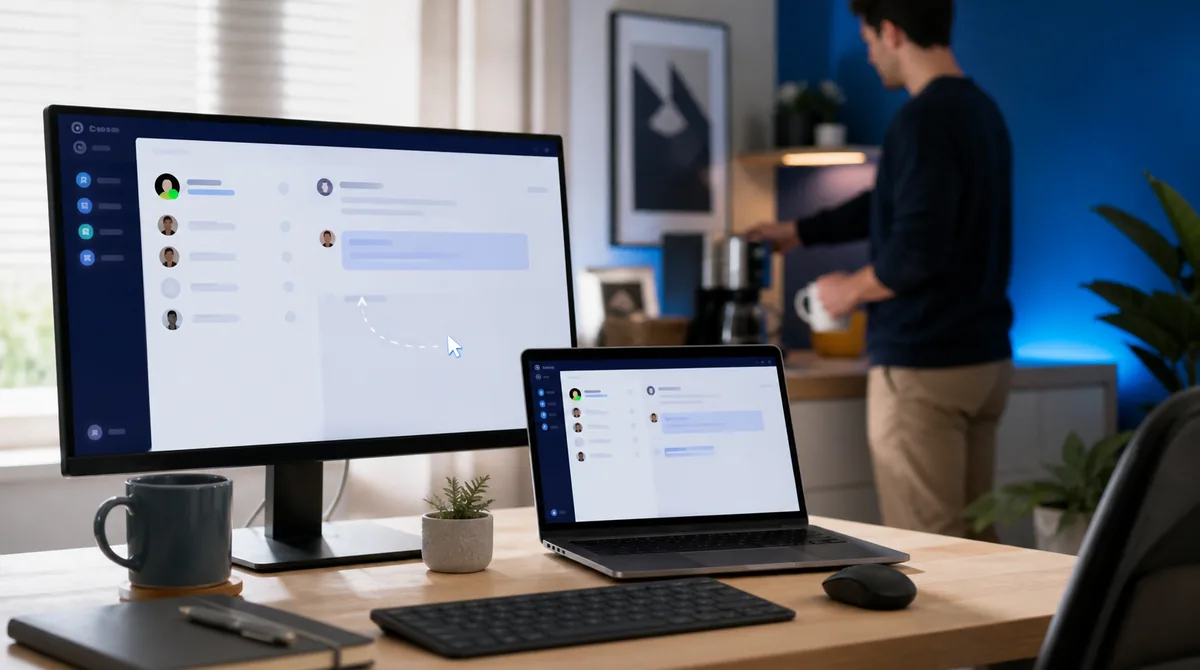
Yes, a mouse jiggler can usually keep Microsoft Teams from switching you to Away when the change is caused by desktop inactivity. Microsoft says Teams changes Available to Away when you lock the computer or when it enters idle or sleep mode. A jiggler that produces real operating-system input can keep that idle timer from expiring.
That answer has boundaries. A jiggler does not control your calendar, calls, meetings, manually selected status, network connection, mobile session, or an employer's separate monitoring tools. It keeps a computer active; it does not guarantee a particular Teams dot and it does not create work output. The useful way to approach it is to understand which signal you are trying to change before you run anything.
Table of Contents
Key takeaways
- Teams presence is influenced by computer activity, the Teams client, calendar events, calls, meetings, manual status choices, and other signed-in devices.
- Real desktop input can prevent an inactivity-based switch to Away; a browser wake lock alone usually cannot.
- Microsoft's public presence documentation does not describe a built-in jiggler fingerprint, but separate workplace tools may still see devices, apps, patterns, or screenshots.
- Use the smallest amount of activity that solves a legitimate idle problem. Constant motion looks less natural and adds no benefit.
- A green dot is not a substitute for availability, communication, or completed work.
Does a Mouse Jiggler Work With Microsoft Teams?
A mouse jiggler works with Teams when it prevents the desktop from becoming inactive. The important distinction is between screen awake and user input. A screen can remain lit while Teams still receives no mouse or keyboard activity. The most reliable approach is system-level input that Windows treats like ordinary movement.
Microsoft's own Teams status guidance says Available applies when you are active in Teams and have no conflicting calendar state. It also says the desktop and web clients can switch Available to Away when the computer locks or enters idle or sleep mode. Preventing that desktop state is the part a jiggler can influence.
It cannot force Available in every situation. If you are in a call, Teams normally shows In a call. A calendar meeting can show In a meeting or Busy. Do Not Disturb, Be right back, Appear away, and Appear offline are explicit states. Those signals have their own priority, and making the mouse move does not erase them.
How Microsoft Teams Presence Actually Works
Teams presence is not a single mouse timer. Microsoft describes it as a combined result of user activity, the state of the Teams app, Outlook calendar information, calls, meetings, and user-selected preferences. That is why two people with identical mouse activity can display different dots.
Desktop activity is one input
Microsoft's troubleshooting documentation notes that a desktop can be treated as inactive when it is locked, idle, asleep, or when the user is active through the mobile app instead. The same page uses more than five minutes of desktop inactivity as an example of a switch to Away. Treat that as documented behavior, not a promise that every tenant and client build changes at an identical second.
Calendar and calls can outrank movement
A meeting, call, presentation, focus period, or out-of-office configuration can change presence independently of the mouse. Movement may keep the computer awake while the visible status remains Busy or In a meeting. That is normal, and it is one reason a simple “green dot test” can be misleading.
Multiple devices create multiple presence sessions
Microsoft's Graph presence documentation explains that desktop, web, mobile, and other applications can each maintain a presence session. Teams aggregates those sessions with user-preferred status taking priority. If you are signed in on a phone and laptop, the laptop's mouse is only one part of the final result.
Presence can take time to refresh
The Teams client polls for presence changes, so a switch is not always instant. If a jiggler starts after Teams already shows Away, allow a few minutes and interact with the desktop normally once. A delayed update is not proof the tool failed, just as a brief green dot is not proof the setup will remain reliable.
When a Mouse Jiggler Keeps Teams Active
The best-case scenario is straightforward: Teams is open on an unlocked desktop, your calendar does not impose another state, and the only reason you would become Away is lack of input. In that case, a system-level mouse or keyboard event usually resets the idle state and helps Teams remain Available.
This can be useful when your actual work produces little input: reading a long specification, reviewing a printed document, sketching on paper, joining a call through another device, watching a build, or stepping away for a short break. Presence systems often interpret quiet work as absence because they can see input more easily than thought.
A jiggler is much less useful if your computer locks through a hard security policy that ignores input, the Teams client is disconnected, you manually chose Appear away, or your organization measures actual application use and work output. Read the broader guide on what employers can detect before treating Teams as the whole monitoring picture.
Which Type of Mouse Jiggler Works Best for Teams?
| Method | Can affect Teams presence? | Main advantage | Main limit |
|---|---|---|---|
| Browser wake-lock tool | Not reliably | Keeps the display awake with no install | Does not create system mouse or keyboard input |
| Mechanical mouse mover | Usually | Moves a real mouse; no app process | Movement can be repetitive and physically visible |
| USB jiggler dongle | Usually | Simple input recognized as a pointing device | Creates a device record and may be blocked |
| Software mouse jiggler | Usually | Can vary movement and add keyboard or scroll activity | A running process may be visible to endpoint tools |
| Teams manual status | Sometimes | Official and transparent for Busy, DND, Away, or offline | Microsoft does not offer an indefinite manual Available duration |
Browser tools: screen awake is not presence
The free online mouse jiggler uses a Screen Wake Lock. It is excellent when your goal is stopping the display from dimming during a presentation, dashboard, recipe, or long read. It does not move the real cursor, so it should not be your first choice for Teams desktop presence.
Teams for Web now includes an official setting called “Keep my current status when I'm active outside of Teams on the web.” Microsoft says the browser can request permission to recognize activity in other tabs or apps. That is a Teams feature, not a capability of every wake-lock page, and availability may depend on your browser and tenant.
Hardware: simple but leaves a device trail
A USB dongle normally registers like another Human Interface Device. That makes it simple, but not invisible. Microsoft documents that Windows writes Plug and Play device installation information to SetupAPI.dev.log. A managed organization may also inventory or block unfamiliar peripherals.
Software: more control, different visibility
Software can create irregular movement and, depending on the app, mix mouse, keyboard, scrolling, and application activity. That can be more useful than a fixed dongle when the problem extends beyond Teams. It also means a process exists on the computer. Compare the tradeoffs in hardware versus software mouse jigglers instead of assuming either category is undetectable.
Can Microsoft Teams Detect a Mouse Jiggler?
Microsoft's public Teams presence documentation does not describe a built-in mouse-jiggler detector. The documents explain activity, app state, calendar state, calls, meetings, device state, and user preferences. That supports a narrow conclusion: Teams presence itself is not publicly documented as a forensic jiggler scanner.
It does not support the broader claim that a company cannot detect one. Teams may be only the visible front end while endpoint security, USB control, employee-monitoring software, screenshots, process inventory, or work-product review operates separately. An employer does not need Teams to identify a USB device record or a known application process.
Behavior matters too. A perfectly flat eight-hour Available state with no messages, documents, application changes, or completed work can attract attention without any technical detector. The most important signal is often the mismatch between presence and output, not the two-pixel mouse movement itself.
A Practical Employee-Side Teams Setup
- Confirm the real problem. Let Teams sit untouched once and note whether it changes because Windows becomes idle, the screen sleeps, the machine locks, or another state takes priority.
- Check the official option first. If you use Teams for Web, look under Settings > Notifications and Activity > Presence for the setting that keeps status current when you are active outside Teams.
- Choose the smallest tool. Use a wake lock for a lit screen, modest system-level input for an inactivity timer, and a multi-signal desktop app only when your legitimate workflow needs more than cursor movement.
- Start conservatively. Avoid continuous circles or a fixed movement every few seconds. Irregular, occasional activity is closer to normal use and less distracting.
- Test for 15 minutes. Keep Teams open and unlocked, then verify status from another account or device. Do not rely on the dot beside your own profile alone.
- Test the return path. Stop the jiggler and confirm your computer and Teams return to their normal idle behavior. A tool you cannot stop cleanly is not a good work setup.
- Review policy and output. Make sure your availability still reflects when colleagues can reach you and that the setup does not conflict with device or time-reporting rules.
If you want a fuller product-neutral walkthrough for each device type, use the companion guide on how to use a mouse jiggler.
Why Teams Still Shows Away While the Mouse Moves
The movement is not system-level
An animation inside a web page can look like movement without sending input to Windows. A Screen Wake Lock prevents display sleep but does not create mouse events. Test whether the real pointer changes position outside the browser.
The computer is locked or asleep
Input cannot keep Teams available after a forced lock has already taken effect. Check Windows power and lock behavior, laptop-lid settings, and organization policies. Microsoft places screen and sleep timeouts under Settings > System > Power & battery in Windows 11.
A manual or calendar state has priority
Appear away, Do Not Disturb, Busy, a meeting, a call, focus time, or out-of-office information can determine the displayed status. Open the profile menu and calendar before blaming the jiggler.
Another device is influencing presence
Close or sign out of stale Teams sessions temporarily and test one client at a time. A mobile session, virtual desktop, browser session, or another computer can complicate the aggregate state.
Presence is delayed
Resume real activity once, wait several minutes, and restart Teams if the state remains stuck. Microsoft publishes a dedicated troubleshooting guide for cases where desktop activity resumes but presence does not update correctly.
The Workplace Risks a Green Dot Does Not Solve
A mouse jiggler can be a practical response to an overly eager idle timer, especially when you are genuinely working away from the keyboard. It can also be against policy. The technology does not decide which use is acceptable; your employment agreement, security rules, timekeeping obligations, and manager expectations do.
There is also a communication risk. Available tells coworkers you are reachable. If you preserve that signal while you cannot respond, you may create a trust problem even when no monitoring product is involved. Consider using Be right back, Busy, focus time, or a status message when those choices describe reality better.
Finally, do not use a jiggler as a substitute for accurate time reporting. Several monitoring systems compare input with screenshots, app use, keyboard-to-mouse balance, schedules, or output. The guide to where mouse jigglers work and fail explains why an idle timer is the easiest layer and work-context analysis is the hardest.
Microsoft Teams Mouse Jiggler FAQ
Does a mouse jiggler keep Microsoft Teams active?
Usually, yes, when Teams is switching to Away because the computer becomes idle. Input that Windows recognizes can keep the desktop active and delay that automatic change. It cannot override every calendar, call, manual-status, connection, or device-session state.
Can Microsoft Teams detect a mouse jiggler?
Microsoft's public presence documentation does not describe a built-in jiggler detector. That is a narrow statement about Teams, not a guarantee of invisibility. Separate endpoint or employee-monitoring tools can inspect devices, processes, screenshots, patterns, and output.
Why does Teams still show me as Away while the mouse moves?
The computer may already be locked or asleep, the movement may exist only inside a browser, or a manual, calendar, mobile, or stale session may have priority. Test one unlocked desktop client at a time. Allow a few minutes for presence to refresh after activity resumes.
Does the online mouse jiggler keep Teams green?
Not reliably. The online tool keeps a visible screen awake through a browser wake lock but does not create operating-system input. Teams for Web has its own official permission-based option for recognizing activity outside the Teams tab, which is separate from a generic wake lock.
Will a USB mouse jiggler work with Teams?
It usually can because Windows treats it as a pointing device and its movement resets inactivity. The tradeoff is a hardware trail: Windows logs Plug and Play device installation, and managed organizations may inventory or block unknown devices. Simple movement can also be repetitive.
What is the best mouse jiggler setting for Teams?
Use modest, irregular activity and test it on your actual computer. There is no universal perfect interval because client versions, tenant settings, power rules, and other devices differ. Constant movement is unnecessary if occasional input already prevents the idle transition.
Is using a mouse jiggler with Teams safe at work?
Only your workplace policy can answer that. Preventing a nuisance lock during legitimate work is different from falsifying availability or hours, but a rule may prohibit automated input or unapproved devices regardless of intent. Check the rules and keep your status honest about whether coworkers can reach you.
Sources and Method
This guide separates documented Teams behavior from inference. Primary references: Microsoft Support: Change your status in Teams, Microsoft Graph: Manage presence state, Microsoft Learn: Incorrect Teams presence, and Microsoft Learn: SetupAPI device logs. Product recommendations are our interpretation of those behaviors and our own tool testing.
The Bottom Line
A mouse jiggler can keep Microsoft Teams active when desktop inactivity is the cause of Away status. It cannot command the whole presence system, hide from every workplace tool, or replace real availability. Start with the exact problem, use the smallest appropriate method, and verify the result against your own client and policies.
Need system-level activity beyond a wake lock?
Mouse Jiggler combines randomized mouse movement with optional keyboard, scrolling, and app activity. Try it for seven days and test it against your real workflow.
Start the 7-Day Free TrialCompare plans

