The Short Answer
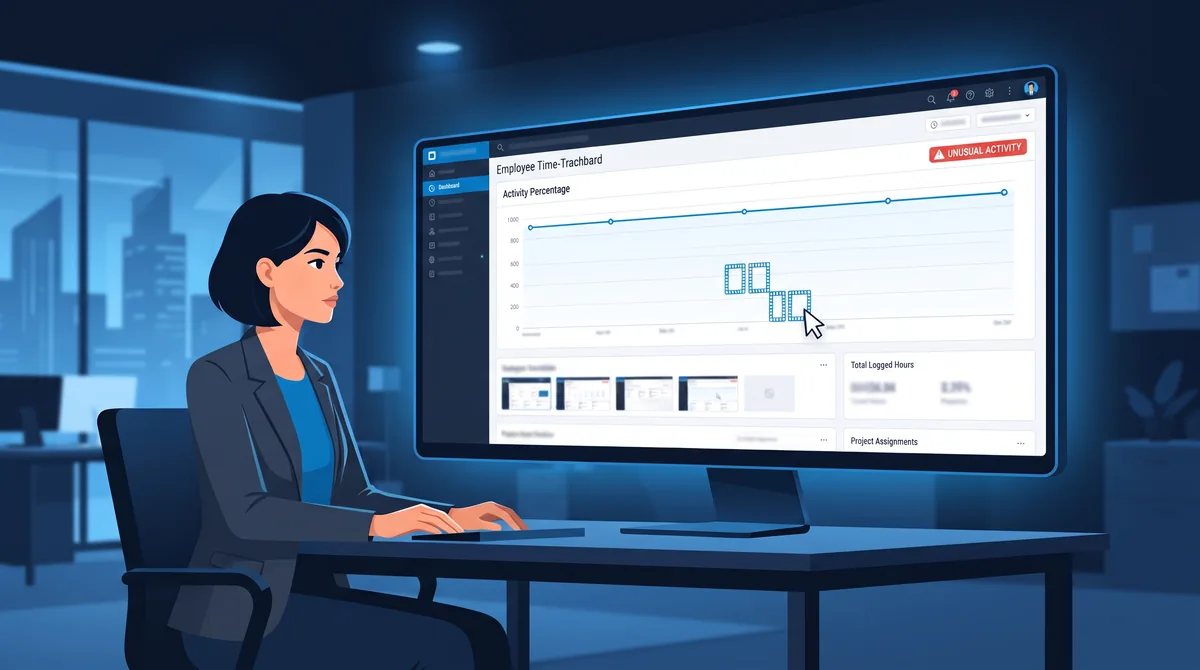
Can Hubstaff detect a mouse jiggler? It comes down to one thing: whether your employer pays for the Insights add-on. Plain Hubstaff measures whether input happened, takes screenshots, and logs the apps and sites you use. It does not analyze the fine-grained pattern of your movement, so against base Hubstaff a jiggler simply keeps your activity number from dropping. Turn on the paid Insights add-on, though, and Hubstaff gains AI-powered "Unusual Activity" detection that the company markets specifically as catching "apps that mimic human mouse movement patterns (mouse jigglers) and other fraudulent apps."
Here's the part that works in your favor: Hubstaff publishes the exact thresholds that trip its detection. It flags activity that sits above 95% for 30 minutes, activity that barely fluctuates for an hour and a half, a mouse that keeps moving while the keyboard stays near zero for 50 minutes, and a handful of known jiggler apps by name. A cheap tool pinned at 100% all day hits several of those at once. A tool that holds a natural range, varies its output, and covers the keyboard as well as the mouse stays under every one of them. And no matter which version your employer runs, the real weak point is the same as with every tracker: screenshots still photograph an idle screen, and no jiggler produces the work you're actually measured on. This guide breaks all of that down.
The key takeaways:
• Plain Hubstaff tracks an activity percentage, random screenshots, apps and URLs, and idle time — but it records whether you were active, not the micro-pattern, so it does not fingerprint jigglers.
• The paid Insights add-on adds AI "Unusual Activity" detection built to flag jigglers, plus a list of known simulation apps it watches for.
• It flags on published thresholds: 95%+ for 30 min, under 4% fluctuation for 90 min, keyboard near 0% for 50 min, and hours of breakless work.
• A flag is a manager alert (widget plus email, up to 36 hours later), not an automatic penalty — and screenshots still expose an idle screen regardless.
What Hubstaff Is and What It Tracks
Hubstaff is one of the most widely deployed time-tracking and monitoring tools for remote teams. It runs quietly in the background and, at its base level, collects a fairly standard set of signals. If you're mapping this to the four monitoring tiers in our guide on whether employers can detect a mouse jiggler, plain Hubstaff sits around Tier 2 to 3, and climbs toward Tier 3 to 4 once the Insights add-on is switched on.
At the base level, Hubstaff captures:
- An activity percentage from mouse and keyboard. Hubstaff measures input over ten-minute periods of 600 seconds. If your keyboard and mouse registered input for 300 of those seconds, that's a 50% activity rate. Crucially, it counts whether input occurred in each second, not the shape of the movement.
- Random screenshots. The agent can grab screenshots as often as three times per 10-minute interval, though the frequency is configurable and the employer can turn it off entirely.
- App and URL tracking. It logs which applications and websites are used and for how long, and managers can label them productive or unproductive.
- Idle-time detection. Long stretches with no input are marked idle and can be trimmed from tracked time, which is exactly the behavior a jiggler is built to prevent.
- Optional GPS and location on mobile, which is irrelevant to the jiggler question but part of the wider footprint.
The important line here is that base Hubstaff records whether input happened, not the pattern of it. That's what separates it from a tool like Insightful, whose Activity Verification is built to analyze the pattern of your input in real time. On plain Hubstaff, a moving cursor reads as activity, full stop. The pattern analysis only enters the picture with one specific upgrade.
The Add-On That Changes the Answer
The detection everyone actually asks about does not live in the base product. It lives in a separate paid tier called the Insights add-on. When an employer enables Insights, Hubstaff switches on what it calls AI-powered Unusual Activity tracking, which it describes as combining "time tracking and behavioral analytics to detect anomalies in work patterns," including mouse jigglers and auto-clickers.
So the precise answer to "can Hubstaff detect a jiggler" is really a question about your employer's billing: have they bought Insights? If not, none of the pattern detection below exists on your account, and only the screenshots are worth worrying about. If they have, Hubstaff flags simulated activity in two different ways: a set of behavioral thresholds that watch how your activity moves over time, and a known-app list that watches for named simulation tools running on the device.
One more detail matters for timing. According to Hubstaff's own support documentation, the behavioral anomalies aren't instant: they surface in an "unusual activity" widget and by email to owners and managers "the next day, up to 36 hours" after the activity. The known-app detection is faster, alerting closer to when a flagged app launches. Either way, being flagged routes to a person, not to an automatic penalty — a distinction that matters as much here as it does anywhere in whether mouse jigglers actually work.
The Rules Insights Actually Flags On
Most trackers keep their detection logic vague. Hubstaff is unusually specific, and it publishes the numbers. That's a genuine gift to anyone trying to stay under them, because a threshold you can see is a threshold you can avoid. Here are the behavioral rules Insights is documented as using.
1. Activity that's too high
Hubstaff flags an average activity rate of 95% or higher sustained for 30 minutes or more, and describes activity above 95% for over an hour as "extremely rare." This is the classic tell of a lazy jiggler left running at full tilt: a real person reads, thinks, opens files, and takes calls, so their number naturally rises and falls. A cursor nudged every second, forever, pins the meter near 100% in a way almost no genuine work sustains. The fix is counterintuitive but simple: do not max the number out. A believable profile sits in a natural mid range, not at the ceiling.
2. Activity that's too consistent
The second rule watches for flatness. Hubstaff flags an activity rate that fluctuates by 4% or less for 90 minutes or more, and calls a rate holding at "0% change for 40 minutes or more" exceedingly rare and worth immediate investigation. A metronomic jiggler produces exactly this signature: the same tiny movement on the same timer yields an almost perfectly flat line. Real activity is jagged. The way to beat this rule is randomization — varied movement, varied timing, and natural gaps that keep the line moving up and down like a human's.
3. A mouse that moves while the keyboard stays silent
Hubstaff explicitly flags cases where "the mouse was being used normally while the keyboard stayed at or near 0% for over 50 minutes" (and the reverse for keyboard-only tools). This is the single strongest signal against a mouse-only jiggler, and the one most people underestimate. An hour of cursor movement with a completely silent keyboard is the clearest possible sign that a machine, not a person, is generating the input. Closing this gap means covering more than the mouse: a tool that also simulates keyboard input keeps both channels alive, which is what real work looks like.
4. Never taking a break
Two related rules watch for inhuman endurance: over five consecutive hours of tracked work where activity never drops below 30%, and more than five hours of focus time above 80% in a single day. People step away, get coffee, go to meetings. A jiggler running unattended from login to logout produces a marathon no human sustains. Letting genuine breaks punctuate the day is both more honest and more believable.
5. Running a known jiggler app
The behavioral rules are about patterns; this one is about names. With Insights enabled, Hubstaff maintains a list of applications known to simulate keyboard or mouse activity and monitors for them running on the device, with the ability to notify managers the moment one launches. Behavioral tuning does nothing against this check — only your choice of tool does. A low-profile or portable app that doesn't match a known signature is less exposed than a popular named utility, but you should assume any widely marketed consumer jiggler is on the list.
Read the five rules together and the strategy writes itself. A jiggler gets flagged when it is too high, too flat, mouse-only, breakless, or a known app by name. Leaving nothing to flag means being none of those: hold a natural range, vary the output, keep the keyboard alive, take real breaks, and don't run a tool that's on the list.
What Hubstaff Can and Can't See
It helps to separate what Hubstaff genuinely catches from what it can't. Here's how a basic mouse-only jiggler and a well-built, randomized multi-signal tool each fare against what Hubstaff collects — assuming the Insights add-on is switched on, since without it the middle rows simply don't apply.
| What Hubstaff checks | Basic mouse-only jiggler | Randomized multi-signal software |
|---|---|---|
| Idle time | Defeated — you stay "active" | Defeated — you stay "active" |
| Too-high activity (95%+/30 min) | Flagged if left pinned near 100% | Avoided — holds a natural range |
| Too-consistent activity (≤4%/90 min) | Flagged — flat, metronomic line | Avoided — randomized fluctuation |
| Mouse without keyboard (50 min) | Flagged — keyboard silent | Closed — simulates keyboard too |
| Known-app process list | Risk if it's a named app | Lower with a portable, low-profile tool |
| Screenshots | Exposes an idle screen if you're away | Exposes an idle screen if you're away |
| Actual output / deliverables | Not faked | Not faked |
Read the bottom two rows carefully, because they are the honest limit of any jiggler, on Hubstaff or otherwise. Screenshots and real output are not something software movement can fake. If Hubstaff grabs a screenshot while you're away from the desk, it captures an idle screen no matter how clever the cursor motion is. And no jiggler writes the document, closes the ticket, or ships the code your manager is ultimately measuring. A well-built tool closes the input gaps Insights keys on. It does not make you invisible under a camera pointed at your screen.
Your Risk by Type of Jiggler
Because Insights keys on those patterns, and because the base product still takes screenshots, your exposure depends heavily on which kind of jiggler you run. Here's how the common types stack up specifically against Hubstaff.
| Type | Risk against Hubstaff |
|---|---|
| USB dongle | Highest. Fixed movement trips the consistency and mouse-only rules, and the device itself adds a hardware trail endpoint controls can log. |
| Mechanical mouse mover (pad/cradle) | High. No USB trail, but the fixed on-screen loop is the flattest, most mouse-only pattern there is, and it can't touch the keyboard. |
| Basic mouse-only app | Moderate to high with Insights on, low without it. If it's pinned high, flat, and keyboard-silent, it hits three rules; if it's a named app, add the process list. |
| Randomized multi-signal software | Lowest. A natural range, varied fluctuation, simulated keyboard, and natural breaks stay under every published threshold — though screenshots still apply. |
The pattern matches what we cover in the broader hardware vs software mouse jigglers comparison: hardware buys you nothing against Hubstaff's activity rules and adds a device trail, while the safest profile is software that does more than nudge the cursor. For the tool-by-tool version of that ranking, the best mouse jiggler software roundup scores the options by detection resistance.
How to Lower Your Risk
If you've decided a jiggler fits your situation and Hubstaff is what your company runs, here's how to keep your footprint small, in order of impact. Each one maps directly to a published rule above.
- Hold a natural activity range, not 100%. Sustained 95%-plus is a flag in its own right. Aim for a believable mid range rather than maxing the meter.
- Use randomized software so the number fluctuates. A flat line for 90 minutes is flagged; varied movement with natural pauses keeps the graph jagged the way real work is.
- Cover the keyboard, not just the mouse. The mouse-only gap is the strongest signal Hubstaff keys on. A tool that also simulates keyboard input closes it. You can see how these features work in practice.
- Take real breaks. Five-plus hours of unbroken activity is its own flag. Stepping away is both more honest and more believable than a machine that never rests.
- Avoid running a well-known named jiggler on a managed machine. The known-app list catches tools by signature. A portable, low-profile app is less exposed, though popular named ones should be assumed known.
- Skip the USB dongle. It fails the movement rules and adds a hardware record device controls can log, as the USB detection guide explains.
- Do some real work, and never fake measured output. Screenshots still capture your screen and deliverables are still counted. A jiggler is best at covering the gaps around real work, not replacing it.
- Find out whether Insights is even on. Without the add-on, the pattern rules don't exist for your account. Start by checking your running processes and your IT policy, using the steps in the employer-detection guide.
If you want the deep, tracker-specific version of holding a consistent Hubstaff activity number from the time-tracking side, our sister site's guide on how Hubstaff's activity scoring works and how to keep reports consistent goes further into its percentage math and screenshots. And for how demand for these tools has grown alongside monitoring, see our mouse jiggler statistics.
The Lowest-Footprint Way to Stay Active
Mouse Jiggler runs as software, so there's no USB device to log. It randomizes movement and layers in keyboard, scrolling, and app activity — the exact input gaps Hubstaff's Insights rules are built to flag. Free for 7 days.
Download for WindowsFrequently Asked Questions
Can Hubstaff detect a mouse jiggler?
It depends on one thing: whether your employer pays for the Insights add-on. Plain Hubstaff measures whether input happened, takes screenshots, and logs apps and URLs, but it does not fingerprint the pattern of your movement, so a basic jiggler simply keeps your activity number up. Turn on the paid Insights add-on and Hubstaff gains AI Unusual Activity detection that is built to flag jigglers, plus a list of known simulation apps it watches for. The catch for Hubstaff is that it publishes the exact thresholds that trip it, such as activity above 95% for 30 minutes or a keyboard sitting near 0% for 50 minutes, so a tool that stays in a natural range and covers more than the mouse avoids all of them.
Does Hubstaff take screenshots?
Yes. Hubstaff can capture random screenshots as often as three times per 10-minute interval, though the frequency is configurable and can be turned off by the employer. This is the real weak point of any mouse jiggler, not the activity number. A screenshot taken while you're away from the desk shows an idle screen no matter how the cursor is moving, and no jiggler produces the document or ticket your manager is actually measuring. If your employer runs Hubstaff with screenshots on, treat a jiggler as a tool for staying active and keeping the screen awake, not for faking output.
What is the Hubstaff Insights add-on and do I need it for detection?
Insights is a separate paid add-on layered on top of Hubstaff's base time tracking. It is where the AI Unusual Activity detection lives, the feature Hubstaff markets as catching mouse jigglers and other fraudulent apps. Without Insights, Hubstaff has no jiggler fingerprinting at all: it only records whether input happened, takes screenshots, and tracks apps. With Insights enabled, the published behavioral thresholds and the known-app list come into play. So the honest version of the detection question is really whether your employer has bought Insights.
What activity percentage looks natural on Hubstaff?
Most genuine knowledge work lands somewhere in a 40 to 80 percent activity range across a day, because real work includes reading, thinking, meetings, and pauses. Hubstaff's own Unusual Activity rules treat sustained extremes as suspicious: activity above 95% for 30 minutes or more is flagged, and above 95% for over an hour is described as extremely rare. The takeaway is that maxing the number out is counterproductive. A believable profile sits in a natural mid range and fluctuates, rather than pinning at 100%.
Does Hubstaff detect specific mouse jiggler apps by name?
With the Insights add-on, yes. Hubstaff maintains a list of applications known to simulate keyboard or mouse activity and monitors for them running on the device while tracking, and it can notify managers when one launches. A low-profile or portable tool that does not match a known signature is less exposed than a popular named app, but you should assume that any widely known consumer jiggler is on the list. Behavioral tuning does not help against this check; only the choice of tool does.
Can Hubstaff tell the difference between a mouse jiggler and real work?
Not with certainty. Hubstaff infers a jiggler from patterns rather than proving one: activity that is too high, too consistent, mouse-only with a silent keyboard, or breakless for hours. Genuinely repetitive real work, like reviewing dashboards or reading long documents, can trip the same rules as a false positive, which is one reason a flag goes to a manager to investigate rather than acting automatically. It also means a jiggler that produces varied, balanced, human-shaped activity gives the pattern-matching very little to catch.
Can Hubstaff see a mouse jiggler on my personal computer?
Only if the Hubstaff client is installed on that machine and tracking under your employer's organization. Hubstaff is monitoring software that has to run on the computer to collect anything, so on a personal device you own, with no employer client installed, there is nothing for it to see. The detection question only applies to a computer your employer manages or one where you've installed their tracking client. On your own hardware, Hubstaff is not in the picture at all.
The Bottom Line
Hubstaff's answer to the jiggler question is unusually conditional. Out of the box, it doesn't fingerprint your movement at all — it counts whether you were active and photographs your screen, and a jiggler keeps the first number up. The moment your employer adds the paid Insights tier, Hubstaff starts looking for jigglers in earnest, with AI unusual-activity detection and a known-app list. But it does something almost no competitor does: it tells you the exact numbers. Too high, too flat, mouse-only, breakless, or a named app — those are the fingerprints of a lazy setup, not a magic detector.
Keep your expectations honest: screenshots still capture your screen, real output is still measured, and any flag still lands in front of a human before anything happens. Used as an anti-idle and status tool, a software mouse jiggler can address an inactivity timer. Used to fake a day of work on a machine that photographs the desktop, nothing can promise invisibility. New here? Start with the primer on how mouse jigglers work, compare Hubstaff with Insightful detection, or read how the Time Doctor Unusual Activity Report correlates simulated-activity signals.


