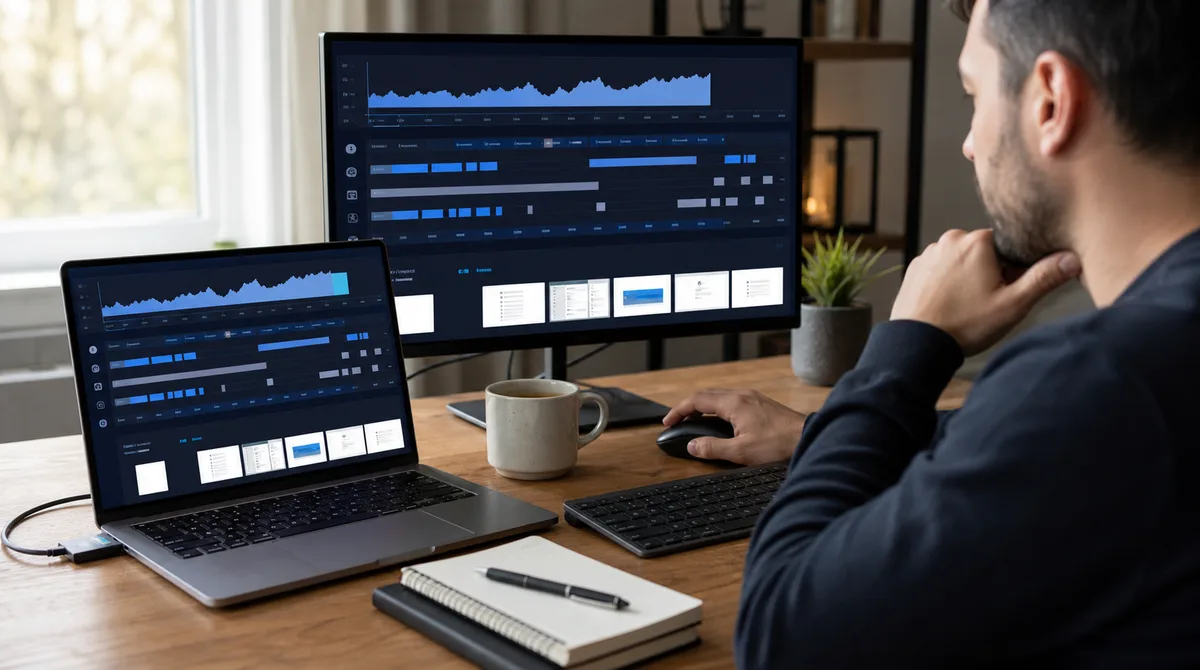
Yes, Time Doctor can flag activity patterns associated with mouse jigglers. Time Doctor now says this directly: its Unusual Activity Report can surface mouse movement without corresponding application activity, unusual keyboard patterns, and extended “active” sessions that do not match normal work behavior. The platform can also combine keyboard and mouse counts with idle time, screenshots or screencasts, app and website use, and work context.
That does not mean Time Doctor watches the exact path of every cursor or automatically proves a person used a particular device. Time Doctor says it counts keystrokes and mouse movements but does not record the specific keys or exact mouse actions. Its unusual-activity result is a reason for a manager to review a session, not an automatic firing decision. The practical risk comes from correlation: movement that looks harmless alone can look different beside a static screen, no keyboard activity, unchanged apps, missed work, or a repeated all-day pattern.
What employees should know
- Time Doctor publicly states that it can flag mouse-jiggler and other simulated-activity patterns.
- It counts mouse and keyboard activity; it says it does not record exact keys or exact mouse actions.
- Screenshots, screencasts, app usage, idle time, and unusual-activity timestamps can add context.
- A flag is not conclusive proof. Passive work and specialized input devices can create legitimate low-activity periods.
- No hardware or software jiggler is guaranteed undetectable, and adding more artificial signals is not a reliable answer.
In this guide
The Short Answer: It Looks for Patterns, Not Just Movement
Older discussions often assume that a time tracker asks one binary question: did the mouse move? Time Doctor's current documentation describes a broader system. The desktop application measures keyboard strokes and mouse movements during tracked sessions. Activity reports can show active or idle percentages. Screenshots taken during minimal input can be marked low activity. The Unusual Activity Report can identify timestamps and patterns that may be associated with simulated work.
Time Doctor's public FAQ gives a direct example: sustained mouse activity without corresponding app use or meaningful keyboard input can create a detectable signature. Its March 2026 mouse-jiggler article describes managers correlating mouse activity with keyboard input, applications, websites, screenshots, and screencasts. The company also says a flagged session is sent for manager review rather than automatically causing a penalty.
This distinction matters. A basic jiggler may prevent an idle timer from reaching zero, but avoiding “idle” is not the same as matching the complete record of a normal work session. Conversely, a low-input period is not automatically fake. Someone can be reading a contract, watching required training, attending a call, sketching with a pen tablet, running a build, or reviewing video while producing few conventional keyboard or mouse events.
What Time Doctor Tracks During a Session
Keyboard and mouse counts
Time Doctor says its desktop app counts keystrokes and mouse movements and calculates percentages of minutes and seconds containing activity. It says it does not record which key was pressed or the exact mouse action. This makes the metric less invasive than a keylogger, but it still reveals the rhythm and amount of conventional input.
Idle time
The Activity Summary can show percentages of idle minutes and idle seconds. A mouse jiggler may reduce one simple inactivity measure, but the surrounding session can still be reviewed. A long active period with little variation, no matching application work, or a screen that never meaningfully changes can invite questions.
Screenshots and screencasts
When an employer enables screenshots, Time Doctor says captures with minimal input can be marked low activity. Depending on employer configuration, managers may also have access to screenshots or video screencasts at relevant timestamps. Screenshot settings are configurable, including whether images are blurred, so two workplaces using Time Doctor can collect different visual evidence.
Applications and websites
Time Doctor describes app and website reports that show what was used while time was tracked and for how long. This adds context that raw movement lacks. Ninety minutes of mouse activity while a single unrelated or unchanged window remains foregrounded is different from a session that naturally moves among the tools needed for a task.
Unusual Activity Report
The Unusual Activity Report is the clearest change for the jiggler question. Time Doctor says it identifies unusual keyboard and mouse patterns that may be associated with simulated rather than real work. Managers can inspect timestamps, compare reports, and use screencasts where available. Time Doctor's FAQ lists mouse movement without related app activity, unusual keyboard patterns, and extended active sessions that do not align with normal work behavior.
| Signal | What Time Doctor says it shows | What it cannot prove alone |
|---|---|---|
| Mouse and keyboard activity | Counts and active/idle percentages | Whether the input produced useful work |
| Low-activity capture | Minimal input around a screenshot | Whether passive work was legitimate |
| App and website use | Tools used and tracked duration | The quality of every action inside a tool |
| Unusual Activity Report | Patterns and timestamps for review | Which physical device caused every event |
| Screencast | Visual context around a period | A person's full offline work or intent |
How Time Doctor Can Recognize Jiggler-Like Activity
Mouse movement with little keyboard or app activity
A simple mover can produce uninterrupted cursor input while the rest of the session remains quiet. Time Doctor explicitly names mouse movement without corresponding application activity or meaningful keyboard input as a suspicious pattern. That does not mean every reading session is suspicious; it means the platform can present the mismatch for review.
Unusually consistent or extended activity
Human work contains starts, pauses, task changes, meetings, corrections, and breaks. A tool that runs for hours can create a flatter record than the work it is supposed to represent. Artificially adding keyboard, clicking, or app switching does not solve this reliably. It can instead create more signals that do not match the visible task or that affect the wrong window.
Static visual context
If screenshots or screencasts are enabled, input can be compared with what was on screen. Repeated captures of an unchanged page during claimed interactive work may prompt review. The reverse can also help an employee: a training video, design canvas, call, or document being reviewed may explain why conventional input was low.
Application footprint and endpoint evidence
Time Doctor is only one layer. Software jigglers run as processes that endpoint or application-inventory tools may see. USB jigglers can leave operating-system device records. A mechanical mover avoids those direct records but still affects the behavioral record. An employer can combine multiple sources even if Time Doctor itself does not identify the exact product.
Work context
A report is more persuasive when it aligns with missed deadlines, absent deliverables, unchanged tasks, missed messages, or a schedule discrepancy. It is less persuasive when the worker can show a meeting, approved passive review, a long build, client call, research notes, or completed output. Activity data should support a work conversation, not replace one.
Detection Risk by Mouse Jiggler Type
| Type | What it changes | Potential evidence | Important limit |
|---|---|---|---|
| Mechanical mover | Moves the existing optical mouse | Mouse-heavy activity, repetition, static screens, little app change | No software process does not mean no behavioral signal |
| USB jiggler | Sends mouse input as a USB device | Activity pattern plus device records outside Time Doctor | “Driverless” is not “unrecorded” |
| Basic software jiggler | Generates cursor input in software | Running process, mouse-heavy pattern, app inventory | Portable software is still software |
| Multi-signal software | Adds mouse, keys, scrolling, clicks, or app changes | More varied input, but also more process and screen context | More signals cannot guarantee a natural or permitted session |
| Browser wake lock | Keeps a visible screen awake | Browser page use; little or no system input | Usually does not address Time Doctor activity at all |
Can a mechanical mover avoid Time Doctor?
It avoids installing a program and does not present a new USB input device when it moves your existing mouse. That narrows the direct technical footprint, but Time Doctor can still see the input created by the mouse and compare it with other reports. A physical device is not a shield against screenshots, app context, timestamps, output review, or an obviously mouse-only session.
Can a USB jiggler be detected?
Time Doctor may evaluate the behavior the dongle produces without naming the dongle itself. Windows and endpoint tools can provide another trail because plugging in a Human Interface Device can create installation and inventory records. For the device layer, see how USB mouse jigglers can be detected.
Does varied activity make software invisible?
No. Mouse Jiggler can generate mouse, keyboard, scrolling, and app activity, but no feature set can promise invisibility to Time Doctor or an employer. Extra automation can touch the wrong chat, document, terminal, or application. It can also create a record that conflicts with the work visible on screen. Use automation only where it is permitted and for a legitimate keep-awake or accessibility-style need—not as a substitute for work.
False Positives and Legitimate Low-Input Work
Input counts are incomplete measures of productivity. Time Doctor acknowledges a concrete limitation: joysticks, game controllers, and drawing tablets used only with pen input are not recognized as activity inputs by the desktop app. Game artists, animators, QA testers, and other specialized roles may therefore appear idle while actively working.
Ordinary knowledge work can create similar gaps. Consider:
- reading a long contract, specification, or research paper;
- watching mandatory training or reviewing a recorded call;
- attending a meeting on another device;
- waiting for a build, export, backup, simulation, or upload;
- drawing with a pen tablet or using a specialized controller;
- thinking through a problem, taking paper notes, or reviewing printed material;
- supporting a customer by phone while the tracked screen changes very little.
A low-activity label in these cases can be accurate about input and wrong about work. Time Doctor's own support guidance suggests approved corrections such as editing time, supplementing activity where practical, and reviewing low-activity screencasts. Employees should not manufacture input to hide a measurement gap. The durable fix is to document the workflow and agree on how that work should be recorded.
How to make legitimate passive work visible
- Associate time with a clear task or project before the passive period begins.
- Keep meeting invitations, tickets, review notes, build logs, exported files, or deliverables that explain the interval.
- Use approved manual-time or edit-time features when specialized input is missed.
- Ask whether screenshot, idle, and retention settings have been explained to employees.
- Request a workflow-specific rule for roles that rely on tablets, controllers, calls, or long-running processes.
- Measure output and deadlines alongside input percentages.
What to Do If Time Doctor Flags Your Work
Do not guess which signal caused the concern. Ask for the specific date, time range, and report. “Time Doctor detected you” can refer to idle percentages, an unusual-activity event, a screenshot, app use, a schedule mismatch, or a manager's own interpretation. Those require different explanations.
- Get the exact interval. Ask for the timestamp and report name rather than debating a whole week.
- Reconstruct the task. Check calendars, tickets, files, version history, call records, build output, and deliverables.
- Explain legitimate low-input work. Identify reading, meetings, video review, phone calls, tablets, controllers, or long-running tasks.
- Correct inaccurate records through approved tools. Use edit-time or manual-time workflows where policy allows.
- Separate a flag from a conclusion. Ask what evidence supports the conclusion and whether the configuration is known to miss your workflow.
- Address actual policy issues honestly. If automated input was prohibited, understand the rule and stop using it rather than trying to disguise it.
- Agree on a better measure. Define deliverables, response expectations, and task evidence so input counts are not carrying more meaning than they can support.
Time Doctor says its jiggler-related unusual-activity result goes to manager review and does not automatically terminate access or penalize an employee. Your employer's policy and decision process still control the outcome. This article is general technical information, not legal advice; employment and monitoring laws vary by location.
Time Doctor Mouse Jiggler FAQ
Can Time Doctor detect a mouse jiggler?
Yes. Time Doctor says its Unusual Activity Report can flag mouse movement without corresponding app activity, unusual keyboard input, and extended active sessions that do not match normal work behavior.
Does Time Doctor record the keys I press?
Time Doctor says it counts keystrokes and mouse movements but does not record the specific keys or exact mouse actions.
Can it detect a mechanical mouse mover?
It can review the mouse activity and compare it with keyboard input, app use, screenshots, and work context. The mover may avoid a software or USB record, but it is not guaranteed invisible.
Can it detect a USB jiggler?
Time Doctor can analyze the resulting activity. Separate operating-system or endpoint tools may also record the connected USB device.
Will adding keyboard and scrolling prevent detection?
There is no such guarantee. Additional automated input can create more evidence, conflict with screen context, and affect the wrong window.
Can real work look idle?
Yes. Reading, calls, training, long-running tasks, and specialized input devices can produce little conventional keyboard or mouse activity. Time Doctor specifically documents limitations with controllers and pen-only drawing tablets.
What should I do about a false positive?
Ask for the exact timestamp and report, match it to your task evidence, document the workflow, and use approved time-correction tools. Request configuration or measurement changes for recurring cases.
Does Time Doctor automatically punish someone it flags?
No. Time Doctor says it flags the session for manager review. The employer decides how to interpret the report and apply policy.
Sources and Method
This article was checked against Time Doctor's current Workforce Analytics FAQ, keyboard and mouse activity documentation, and March 2026 mouse-jiggler detection article. Product descriptions can change, employer settings vary, and a report should be interpreted with task and workplace context.
The Bottom Line
Time Doctor can detect or flag activity that resembles a mouse jiggler by looking beyond a moving cursor. It can compare input with idle time, applications, screenshots, screencasts, timestamps, and the wider work pattern. That makes “undetectable” claims unreliable. It also means legitimate passive work can be misunderstood unless the workflow is documented. Employees are best served by transparent policies, task evidence, approved corrections, and output-based expectations—not by an arms race of artificial input.
Need to solve a genuine idle problem?
Understand the tradeoffs before choosing a tool. Mouse Jiggler offers configurable activity on Windows and Linux, but no app can promise invisibility or override workplace policy.
Read the setup guideView downloads

