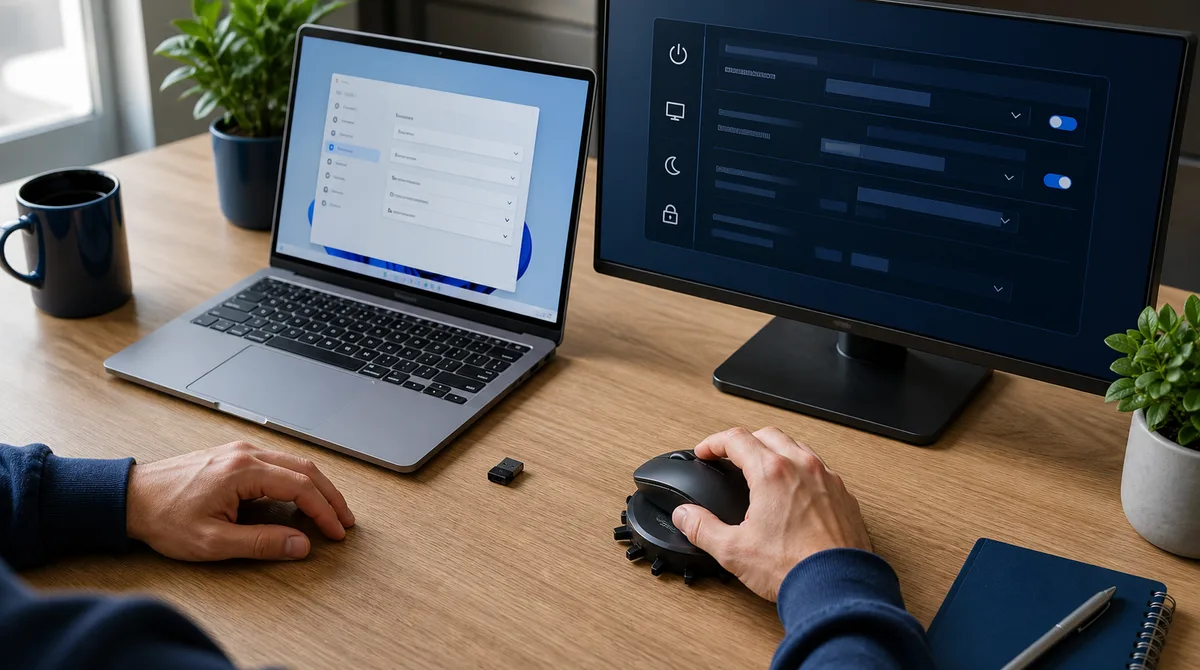
A mouse jiggler works on Windows 10 and Windows 11 when Windows recognizes its movement as real input. The best setup depends on what you actually need: keeping the display on, preventing sleep, delaying an inactivity lock, or keeping a presence app from changing to Away. Those outcomes sound similar, but Windows and workplace applications do not measure them in the same way.
For a personal computer running a long download, Windows power settings or Microsoft PowerToys Awake may solve the problem more cleanly than simulated input. For a managed work laptop where the issue is an activity-based status, a mouse jiggler may affect the idle timer, but company policy, endpoint tools, screenshots, device records, and activity reports still matter. This guide separates those layers before showing how to test each option.
Quick answer
- Use Windows power settings when you are allowed to change them and only need to stop sleep.
- Use PowerToys Awake for an approved temporary keep-awake session; it does not simulate input or work on the lock screen.
- Use a mechanical mover when you need physical mouse movement without adding software or a USB input device.
- Use a USB jiggler for simple operating-system mouse input, accepting that Windows can record the device.
- Use software when you need configurable mouse, keyboard, scrolling, or app activity, accepting that a process is running on the computer.
In this guide
For a focused employee-side explanation, see our keyboard jiggler guide: Keyboard input versus mouse movement, unintended shortcuts, Teams status, and safer options when you only need to prevent sleep.
What Windows Sees as Activity
Windows manages several states at once. The display can turn off while the computer continues running. The computer can enter sleep while the display is already off. A security rule can lock the user session after inactivity. Microsoft Teams, Slack, Time Doctor, or another application can maintain a separate idle timer. Moving the cursor may reset some of those timers without changing the others.
A physical mouse, mechanical mover, USB Human Interface Device, or desktop app can create input that Windows exposes to applications. A browser wake lock is different: it asks the browser and operating system to keep the display awake while the page remains eligible, but it does not pretend that a person moved the mouse. That makes the online tool useful for a presentation or recipe and unreliable for an application that specifically expects operating-system input.
PowerToys Awake is different again. Microsoft describes it as a utility that keeps the computer awake without changing the power plan. It can keep the machine awake indefinitely, for a timed interval, or until an expiration time, with a separate option for keeping the display on. Microsoft also says Awake operates only while you are signed in and does not work when the lock screen is displayed. It is a power-management tool, not a presence simulator.
Windows 10 versus Windows 11
The Mouse Jiggler app supports 64-bit Windows 10 and Windows 11. The portable setup is essentially the same: download the executable, run it, choose the activity you need, and stop it when finished. The important 2026 difference is operating-system support. Microsoft ended free Windows 10 security updates and technical support on October 14, 2025. A jiggler may continue to run, but that does not make an unsupported Windows installation safe. Upgrade to Windows 11 or use an approved extended-security arrangement where applicable.
Windows 11 also exposes screen and sleep controls under Settings > System > Power & battery. Names vary slightly by Windows build and hardware. On managed computers, settings can be hidden, disabled, or overwritten by organization policy, so a control that works on a personal laptop may not be available at work.
Five Windows Keep-Awake Options Compared
| Option | What it changes | Best use | Main limitation |
|---|---|---|---|
| Windows power settings | Display, sleep, and power-plan timers | Personal PCs and approved long-running tasks | May be locked by policy; does not create app activity |
| PowerToys Awake | Temporarily requests an awake power state | Downloads, builds, presentations, and timed sessions | Does not work on the lock screen or simulate input |
| Mechanical mouse mover | Physically moves your existing mouse | No-software, no-USB-input setups | Needs desk space and can create repetitive movement |
| USB jiggler | Registers as an input device and sends mouse movement | Simple system-level activity | Creates a device trail and may be blocked |
| Mouse jiggler software | Generates configurable desktop input | Testing multiple activity types and intervals | Runs as a visible process and can affect the focused window |
1. Change Windows power settings
If the only problem is that a personal computer sleeps during a download, backup, render, or presentation, fix the power behavior directly. On Windows 11, open Settings, select System, then Power & battery, and expand the screen, sleep, and hibernate timeouts. Choose a suitable timeout for battery and plugged-in use. Avoid setting every timeout to Never by habit: a display and unlocked session left running in a shared room create unnecessary privacy, security, and battery costs.
2. Use PowerToys Awake
PowerToys Awake is useful when you want a temporary override without permanently changing the power plan. Set a time interval for a long task or an expiration time for a presentation. Enable the separate display option only when the screen itself must remain visible. Because Awake does not produce mouse or keyboard input, do not expect it to keep every collaboration or time-tracking status active.
3. Use a mechanical mouse mover
A mechanical mover sits under a normal optical mouse and rotates or shifts a surface. Windows sees the existing mouse moving; no new program or input dongle is required. That reduces the direct software and USB-device footprint, but it does not make the activity human. Repeating arcs, uninterrupted movement, static screenshots, and long periods without keyboard or application changes can still look unusual when a workplace reviews behavior in context.
4. Use a USB mouse jiggler
A USB jiggler presents itself to Windows as an input device and sends movement without a mechanical pad. It is compact and normally starts automatically. The tradeoff is device visibility. Windows records Plug and Play installation events, and endpoint-management tools can inventory, allow, or block peripherals. “Driverless” means the device can use a standard driver; it does not mean the connection is unrecorded. Read the dedicated guide to what Windows and IT can see from a USB jiggler before plugging one into a managed laptop.
5. Use configurable mouse jiggler software
Software is the most flexible option because it can create mouse movement and, depending on the app, clicking, keyboard, scrolling, or window activity. Mouse Jiggler for Windows is a portable executable: there is no setup wizard or traditional installation. Portability removes installer friction; it does not hide the running process or excuse unapproved use.
Begin with mouse movement only. Clicking or typing can alter whatever window currently has focus. Scrolling can move a document while you are reading it. Window switching can expose information in screenshots or interrupt another task. More signals are not automatically safer or better. Use only the behavior needed for the legitimate problem you are testing.
How to Set Up Mouse Jiggler on Windows 10 or 11
- Confirm the goal. Decide whether you need the screen on, the computer awake, the session unlocked, or an application to receive activity.
- Check policy and ownership. On a work device, confirm whether portable applications, automated input, and external devices are allowed.
- Use the official download page. Get the current Windows executable from Mouse Jiggler downloads rather than an old attachment or mirror.
- Save your work. Close terminals, chats, payment forms, password fields, and any window where an accidental click or key could matter.
- Run the portable file. Double-click the executable. If Windows shows a security prompt, verify the file came from the official HTTPS download before making a decision.
- Start with mouse movement only. Choose a modest interval and keep the application visible during the first test.
- Observe the real outcome. Watch the screen, Windows lock behavior, the target app, and cursor boundaries for at least 15 minutes.
- Stop and retest. Stop the jiggler and confirm normal idle behavior returns. A setup is not understood until both Start and Stop have been verified.
The 15-Minute Windows Verification Test
A moving cursor proves only that the cursor moved. A useful test measures the state you care about. Before starting, note the normal time at which the display turns off, Windows locks, or the target application changes status. Then run one jiggler mode through that threshold.
- Minute 0: save work, close sensitive fields, start mouse movement, and write down the settings.
- Minute 5: confirm the cursor stays within the correct monitor and does not interfere with normal mouse use.
- Minute 10: check whether the display, lock state, and target application still behave as expected.
- Minute 15: stop the jiggler, interact normally, and verify the app has not left unwanted clicks, text, scrolling, or windows behind.
- Control test: later repeat without the jiggler so you know the observed change was not caused by a power-setting or policy update.
If the goal is Microsoft Teams presence, use the separate Mouse Jiggler for Teams guide. A green dot can be influenced by idle input, but also by meetings, calls, calendars, manual status, other devices, network state, and tenant behavior. Do not diagnose a Teams problem by looking only at Windows sleep.
Windows Mouse Jiggler Troubleshooting
The app will not start
Confirm you downloaded the Windows build, that the file is complete, and that the system is 64-bit Windows 10 or 11. Workplace application controls may block unknown executables even when they are portable. Do not bypass a company security control. On a personal device, verify the source and review the Windows Security message rather than automatically clicking through it.
The cursor moves but Windows still locks
The computer may be applying an enforced security policy, responding to a closed laptop lid, or locking through a mechanism that ordinary input cannot override. Movement that occurs only inside a browser animation may not count as system input. The session may also have locked before the tool began. Unlock the computer, identify the actual timer, and run a controlled test. If policy enforces the lock, respect the policy.
The display stays on but an app shows Away
Keeping the screen awake and creating user input are different. PowerToys Awake and browser wake locks can prevent sleep without resetting an application's activity timer. Conversely, a collaboration client may calculate presence from more than input. Test the desktop client, verify network connectivity, and check whether a manual or calendar-driven state has priority.
The mouse jumps between monitors
Use a smaller movement range and test the edges of every display. Different scaling percentages, portrait monitors, remote desktops, and disconnected screens can change coordinate boundaries. Avoid automatic clicking until the pointer remains predictable across the complete layout.
Windows Security or IT blocks the file
On a managed device, blocking may be intentional. Ask whether an approved keep-awake method exists. Power settings, a documented exception for a long task, or a company-approved utility may solve the problem without fighting endpoint controls. On a personal computer, download only from the official page, keep Windows Security enabled, and scan the file if you are uncertain.
What a Managed Windows Computer May Record
No Windows mouse jiggler type is universally invisible. The available evidence depends on the device, software, and organization. A simple presence application may only observe recent input. Endpoint management can see more. Employee-monitoring tools can combine input counts with apps, websites, screenshots, idle periods, and output.
| Layer | Possible evidence | Why it matters |
|---|---|---|
| Windows | Running processes, device installation records, session and power state | Portable software still runs; USB hardware still connects |
| Endpoint security | Application inventory, execution rules, peripheral inventory, alerts | Organizations can block or review unapproved tools and devices |
| Activity monitoring | Mouse and keyboard counts, idle time, repetitive patterns | Movement can be compared with other work signals |
| Screenshots and app use | Static screens, app names, websites, long unchanged periods | Input without changing work context may prompt review |
| Human context | Missed messages, absent output, schedule mismatch | A green status is not evidence that work happened |
A mechanical mover avoids adding a process or new USB device, but it can still produce behavior that does not match real work. A software tool can generate more varied activity, but it leaves an application footprint and extra input can interact with the wrong window. A USB dongle avoids a desktop process but creates a hardware record. The honest conclusion is not that one category is undetectable; it is that each category exposes different evidence.
If ordinary work such as reading, reviewing video, using a drawing tablet, or waiting for a long task is being labeled idle, the better fix may be documentation and a policy conversation. Explain the passive workflow, keep task records, use manual time where the system allows it, and ask for an approved configuration. Simulated movement cannot correct a metric that misunderstands the work.
Mouse Jiggler for Windows FAQ
Does Mouse Jiggler work on Windows 11?
Yes. The current desktop app supports 64-bit Windows 11 and runs as a portable executable. Power rules and workplace controls can still affect the outcome.
Does it still work on Windows 10?
Yes, but Microsoft ended free Windows 10 support on October 14, 2025. Treat operating-system security separately from app compatibility and move to a supported system where possible.
Do I need to install it?
No traditional installer is required. Download the portable executable from the official page and run it. The process remains visible while it is running.
Will it stop Windows from locking?
It often resets a normal inactivity timer, but it may not override enforced security policy, lid-close behavior, a remote-session rule, or a computer that already locked.
Is PowerToys Awake a mouse jiggler?
No. It requests an awake power state without simulating input. Microsoft says it does not work on the lock screen, and it should not be expected to create activity inside other applications.
Can IT see a mouse jiggler on Windows?
Possibly. Evidence can include a running process, USB device records, inventory, screenshots, app usage, and activity patterns. No option guarantees invisibility.
Why does Teams still show Away?
The activity may not be system-level, Windows may already be locked, or another presence state may have priority. Diagnose Teams and Windows power behavior separately.
What is the safest first setting?
Mouse movement only, at a modest interval, in a harmless test window. Watch it for 15 minutes before enabling clicking, keyboard, scrolling, or app switching.
Sources and Method
Platform behavior was checked against Microsoft Learn: PowerToys Awake, Microsoft Support: Windows 11 power settings, Microsoft Support: Windows lock screen, and Microsoft Learn: device installation logs. Product setup was checked against the current Mouse Jiggler download and documentation pages. Capabilities and controls vary by Windows build, hardware, policy, and monitoring configuration.
The Bottom Line
For Windows 10 and 11, choose the smallest tool that solves the real idle problem. Use Windows settings or PowerToys when you only need to prevent sleep. Use a jiggler when recognized input is genuinely required, then test it with conservative settings and understand its footprint. Keeping a computer awake is a technical state; it is not proof of availability, productivity, or permission.
Need a configurable Windows jiggler?
Mouse Jiggler is a portable Windows app with mouse, keyboard, scrolling, app activity, and a seven-day trial. Start with mouse movement and enable only what your test requires.
Download for WindowsRead the documentation

