The Short Answer
If you're going to use a mouse jiggler, the smartest move is to understand exactly how they get caught, because every detection method has a weak spot once you can see it. Knowing them is the whole difference between a setup that quietly does its job and one that hands you a flag. So here's the honest map, turned around to work for you: mouse jigglers get detected in two completely different ways, and which one applies depends on the kind of jiggler you use. A hardware USB jiggler is detected as a device. Plugging it in writes a permanent entry into Windows device logs that endpoint software on a managed machine can see and forward to IT. A software jiggler is detected as a behavior. Monitoring tools watch for movement that is too flat, activity that never dips, and a mouse that keeps moving while the keyboard stays silent.
Sitting above both of those is the method no jiggler can beat: screenshots and actual output. If monitoring software photographs your screen while you're away, it captures an idle screen no matter how the cursor moves, and no jiggler produces the work you're measured on. This guide walks through every method in detail, because the point of knowing how detection works is knowing your own exposure. If you understand what each type leaves behind, you can tell the difference between a tool that quietly prevents an idle timeout and one that's writing your name into a device log.
The key takeaways:
• Hardware jigglers leave a permanent USB record (registry plus device log) that stays after you unplug them. That's the whole reason software has overtaken hardware on monitored machines.
• Software jigglers plug nothing in, so they leave no device trail. They can only be caught by behavior or by appearing as a named process.
• The strongest behavioral signal is a moving mouse with a silent keyboard, followed by a flat, perfectly repeating movement pattern.
• Screenshots and real output are the one thing no jiggler fakes. Use a jiggler to stay active, not to fake a day you didn't work.
Two Kinds of Detection
Almost every confusing article about mouse jiggler detection mixes two separate questions into one. Splitting them apart is what makes the whole topic clear.
The first question is device detection: does anything physical show up? This only applies to hardware. When you plug a USB jiggler into a computer, the operating system has to recognize it, load a driver, and record it. That recording is the trail. A software jiggler is just a program running in memory, so there is no device to enumerate and nothing physical to log.
The second question is behavioral detection: does the activity look human? This applies to everything, hardware and software alike, because in the end they all produce cursor movement, and monitoring software can analyze the shape of that movement. A jiggler that moves the mouse in a rigid, identical loop looks nothing like a person. One that varies its motion and adds other kinds of input looks a lot like one.
Keep those two axes in mind as you read, because your total risk is the sum of them. A USB dongle scores badly on both: it's a logged device and a flat movement pattern. Well-built software scores low on both: no device, and human-shaped input. For the full comparison of the two families, see hardware vs software mouse jigglers.
How Hardware Jigglers Get Detected
If you use a USB jiggler, the detection story is mostly about one thing: Windows never forgets a device. The moment you connect any USB peripheral, several records get created automatically, and most of them survive long after you unplug it.
The USB device history in the registry
Windows maintains a permanent list of USB devices it has seen. Human interface devices like a mouse or a jiggler are enumerated under registry keys such as USB and USBSTOR in the SYSTEM hive, indexed by vendor, product, and often a serial number. According to the Forensics Wiki, these entries persist indefinitely unless someone manually deletes them. In plain terms: the record of your jiggler connecting is written the first time you plug it in and just stays there.
The setupapi device log
Alongside the registry, Windows writes a plain-text install log at C:\Windows\INF\setupapi.dev.log. It records the first time a device driver is installed, with a timestamp, the hardware ID, and the vendor and product name. Forensic guides describe this file as one of the most reliable sources for a device's first-connected time, and note it can grow to several megabytes and cover months or years of history before Windows rotates it. So there are typically at least two independent records of the same event, which is why "just unplug it" doesn't undo anything.
What endpoint software does with all this
On a personal computer, those logs exist but nobody reads them. On a managed work machine, that's the difference that matters. Endpoint management and device-control tools can inventory connected USB devices, alert on an unrecognized one, and in stricter setups block any peripheral that isn't on an approved list. A generic, no-name HID device suddenly appearing on a company laptop is exactly the kind of thing those tools are built to surface. You don't need anyone actively watching in real time. The evidence is created the instant you connect, and it waits.
This is the core weakness of hardware. A USB jiggler can be flawless at moving the cursor and still betray you through the device trail it leaves, a trail that outlives the moment you used it. A software jiggler plugs nothing in, so this entire category of detection simply doesn't apply to it. That single fact is why most people on monitored machines have moved to software. Read the deep version in can USB mouse jigglers be detected.
How Software Jigglers Get Detected
Software leaves no device record, so detection shifts entirely to behavior and process. This is where employee-monitoring platforms do their work, and it's worth understanding exactly what they look for, because every signal here is avoidable if you know it exists. These are the patterns monitoring vendors themselves describe as their detection methods.
1. A moving mouse with a silent keyboard
This is the single strongest tell, and the one most people underestimate. Real knowledge work almost always interleaves cursor movement with typing. You click, you type, you scroll, you click again. A basic jiggler moves only the mouse, which means monitoring software sees a long stretch of cursor activity with zero keystrokes. Hubstaff, for example, explicitly flags a mouse being used while the keyboard stays near 0% for roughly 50 minutes. An hour of movement with a dead keyboard is close to a signature. The fix is to use a tool that also simulates keyboard input, so both channels stay alive.
2. A flat, perfectly repeating pattern
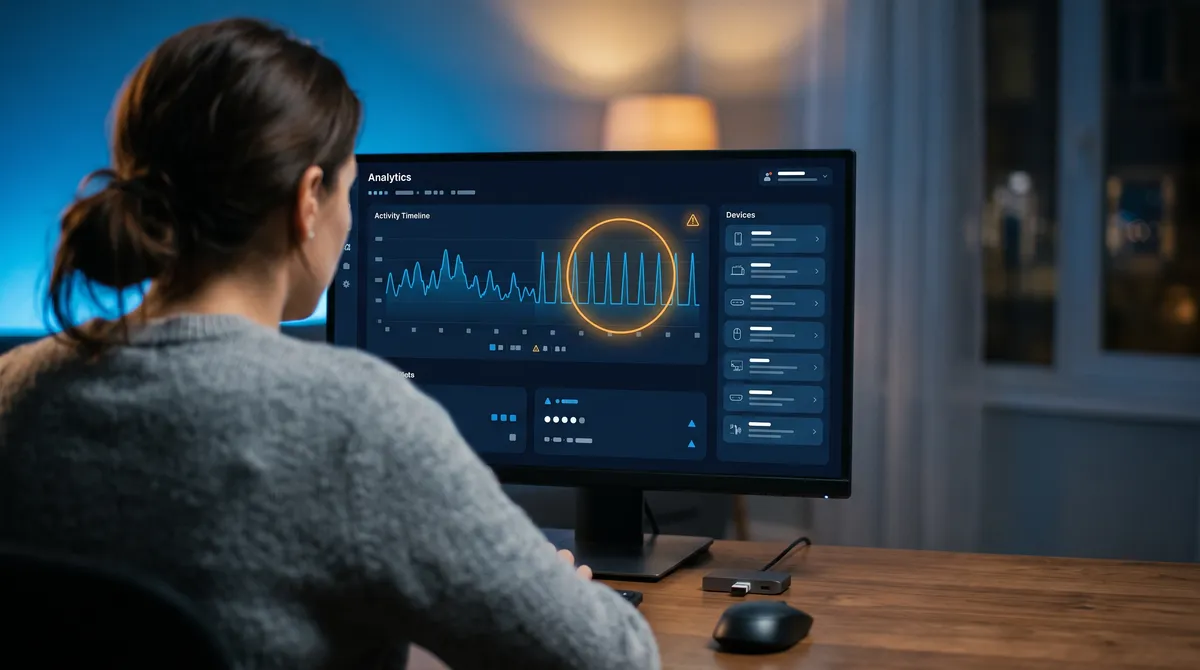
Human motion is irregular. We move the cursor in bursts, at different speeds, to different places, with pauses. A cheap jiggler nudges the pointer the same small amount on the same fixed timer, which produces an almost perfectly flat, repeating line when you graph the activity. Monitoring tools look for exactly this: an activity rate that barely fluctuates over a long window reads as machine-generated. Randomized movement that varies in distance, speed, and timing is what breaks the pattern.
3. Activity that never dips, and never ends
Two related signals fall out of "too consistent." The first is activity pinned near the ceiling, say 95% or higher, sustained for half an hour or more. Almost no genuine work sustains that, because real work includes reading, thinking, and meetings, so a meter stuck near 100% looks artificial. The second is endurance: hours of unbroken activity with no breaks. People get coffee, step into meetings, walk away. A jiggler running untouched from login to logout produces a marathon no human sustains. Both are easy to avoid by not maxing the number out and by letting real breaks punctuate the day.
4. Activity that doesn't match your output
The most sophisticated tools correlate. They line up your cursor activity against what you actually produced: files touched, emails sent, tickets closed, code committed. If the mouse is busy for three hours but nothing was created, edited, or sent, the gap is obvious. No amount of movement tuning closes this one, because the problem isn't the movement, it's the absence of work. This is where a jiggler's honest limit lives, and it leads straight into the next method.
5. Appearing as a known app
Some platforms keep a list of applications known to simulate input and simply watch for those processes running. This isn't behavioral at all: it's a name match. Behavioral tuning does nothing against it, only your choice of tool does. A popular, widely marketed consumer jiggler is more likely to be on such a list than a low-profile or portable one, so on a managed machine, the specific app you run matters. For how a purpose-built detector combines several of these signals, see can Insightful detect a mouse jiggler, and for the tracker that publishes its exact thresholds, can Hubstaff detect a mouse jiggler.
The Method Nothing Beats: Screenshots and Output
Here's the part the vendor blogs bury and the honest answer leads with. Every method above is about input, and input is exactly what a good jiggler can shape. But two detection methods don't look at your input at all, and no jiggler on earth defeats them.
Screenshots and screen recordings. Many monitoring tools capture your screen at random intervals, sometimes several times per ten minutes. A screenshot doesn't care how your cursor is moving. It photographs whatever is actually on the display. If you're away from the desk and the jiggler is keeping you "active," the screenshot simply shows an idle, unchanged screen. The moving cursor in the corner doesn't help; it arguably hurts, because now there's activity with a static screen behind it.
Actual deliverables. In the end, most jobs are measured by output, not by an activity percentage. A jiggler moves the cursor. It does not write the report, answer the customer, or ship the feature. If your role is judged on what you produce, no input simulation fills that gap.
This is the line that separates safe use from risky use. A jiggler is genuinely good at one job: preventing an idle timeout so your status stays green, your session doesn't lock, and a long download, render, or build isn't interrupted. It is genuinely bad at a different job: faking a day of work you didn't do on a machine that photographs your screen. Use it for the first, not the second, and you sidestep the two methods that can't be beaten. That's the same conclusion we reach in do mouse jigglers work.
Detection Risk by Type of Jiggler
Put the two axes together, device trail and behavioral pattern, and the ranking of common jiggler types falls out cleanly. Here's how each fares against the methods above.
| Type | Device trail | Behavioral pattern | Overall risk |
|---|---|---|---|
| USB dongle | Yes — logged as a device | Flat, mouse-only loop | Highest |
| Mechanical mouse mover (pad/cradle) | None — nothing plugged in | Most obvious on-screen loop; no keyboard | High |
| Basic mouse-only app | None | Flat and keyboard-silent; may be a named process | Moderate |
| Randomized multi-signal software | None | Varied movement plus keyboard, scroll, app activity | Lowest |
The takeaway is consistent with everything above: hardware buys you a device record you don't want, and a fixed movement pattern is the easiest thing in the world to flag. The lowest-risk profile plugs nothing in and produces varied, multi-channel input that looks like a working human. Screenshots still apply to all four rows equally, which is why the honest use case doesn't change with type.
How to Check What You're Exposing
You can see much of your own footprint on a machine you control. This is useful for understanding your exposure, not for tampering with a company's logs, which is a separate and much riskier line to cross.
- See your own USB device history. On Windows, Device Manager with "Show hidden devices" enabled reveals previously connected peripherals, and free forensic viewers can read the same USBSTOR and setupapi records IT would. If a jiggler dongle shows up there on your own PC, it shows up on a managed one too.
- Check your running processes. Open Task Manager and look at what's running. If your jiggler appears as a clearly named process, assume a known-app check could see the same name.
- Ask what your company actually runs. Your offer letter, IT policy, or acceptable-use agreement usually names the monitoring software. Knowing whether it's a light time tracker or a screenshot-heavy platform tells you which methods in this guide even apply to you. Our employer-detection guide walks through the monitoring tiers in detail.
- Watch your own activity graph if the tool shows one. Some trackers let employees see their activity percentage. If yours is pinned at 100% and flat, that's exactly the shape detection looks for, and you're seeing what your manager sees.
How to Lower Your Footprint
If you've decided a jiggler fits your situation, here's how to stay on the safe side of every method above, in order of impact. Each one maps to a detection signal we've covered.
- Use software, not a USB dongle. This removes the entire device-log category in one move. Nothing plugged in means nothing to enumerate, log, or block.
- Cover the keyboard, not just the mouse. The mouse-only-with-silent-keyboard gap is the strongest behavioral signal. A tool that also simulates keystrokes closes it. You can see how these features work in practice.
- Choose randomized movement. Varied distance, speed, and timing keep your activity graph jagged like a human's instead of flat like a metronome.
- Don't max out the meter. A natural mid-range that rises and falls is far more believable than a rate glued to 100% all day.
- Take real breaks. Unbroken hours of activity are their own flag. Stepping away is both more honest and more human-looking.
- Avoid running a well-known named jiggler on a managed machine. Process-name checks catch tools by signature. A portable, low-profile app is less exposed.
- Never rely on it to fake measured output. Screenshots capture your screen and deliverables are still counted. Use a jiggler around real work, not instead of it.
For the tool-by-tool version of this ranking scored on detection resistance, see best mouse jiggler software. And for how demand for these tools grew alongside workplace monitoring, the mouse jiggler detection statistics lay out the numbers.
The Lowest-Footprint Way to Stay Active
Mouse Jiggler runs as software, so there's no USB device to log. It randomizes movement and layers in keyboard, scrolling, and app activity — the exact input signals behavioral detection is built to catch. Free for 7 days.
Download for WindowsFrequently Asked Questions
How are mouse jigglers detected?
Two ways, depending on the type. A hardware USB jiggler is detected as a device: plugging it in creates an enumeration event and a permanent record in the Windows registry and the setupapi device log, which endpoint tools on a managed machine can inventory and forward to IT. A software jiggler is detected by behavior: monitoring software watches for movement that is too consistent, activity that never dips, and a mouse that keeps moving while the keyboard stays silent. On top of both, screenshots and the absence of real work output expose anyone using a jiggler to skip work rather than to prevent idle timeouts.
Can IT see a mouse jiggler in the system logs?
For a USB jiggler, yes. Windows keeps a persistent history of every USB device ever connected, in registry keys such as USBSTOR and in the setupapi.dev.log file, each with first-connected and last-connected timestamps. A generic HID device appearing on a company laptop is a visible entry that survives unplugging the device. A software jiggler creates no such device record because nothing is plugged in; it can only be seen as a running process or through its behavioral pattern, not as a hardware log entry.
What is the single biggest giveaway of a mouse jiggler?
A mouse that moves while the keyboard stays completely silent for a long stretch. Real knowledge work almost always mixes cursor movement with typing, so an hour of steady mouse activity and zero keystrokes is the clearest signal that a machine, not a person, is generating the input. Monitoring tools flag this directly. The second biggest giveaway is a flat, perfectly repeating movement pattern, because human motion is irregular and a basic jiggler repeats the same nudge on the same timer.
Does a mouse jiggler show up on a screenshot?
The jiggler itself usually does not appear, but its limitation does. If monitoring software takes a screenshot while you are away from the desk, it captures whatever is actually on screen, which is an idle or unchanged screen, no matter how the cursor is moving. Screenshots and screen recordings are the detection method no jiggler can defeat, because a jiggler moves the cursor, it does not produce the document, ticket, or code your manager is measuring. This is why a jiggler is safe for preventing idle timeouts and risky for faking a day of work you never did.
Can a mouse jiggler be detected on a personal computer?
The same traces technically exist, a USB history entry on your own machine or a repetitive movement pattern, but nobody is collecting or reviewing them on a computer you own. Detection only matters when someone else manages the device or watches the screen. On a company laptop with endpoint monitoring, assume the logs exist even if no one reads them today. On your personal PC, with no employer software installed, there is effectively nothing and no one to detect it.
Which type of mouse jiggler is hardest to detect?
Well-built software that randomizes its movement and also simulates keyboard, scrolling, and app activity. It plugs nothing in, so it creates no USB device record, and its varied, multi-channel input avoids the flat-pattern and mouse-only signals that behavioral detection keys on. A mechanical mouse mover also avoids the USB trail because nothing connects, but its constant identical on-screen loop is the most obvious behavioral tell there is. A USB dongle is the easiest to detect because it combines a hardware record with a fixed movement pattern.
Does unplugging a USB jiggler erase the evidence?
No. Windows writes the device into its USB history the moment you connect it, and that record stays in the registry and setupapi log after you remove the device, complete with the time it was first and last connected. Unplugging stops new activity but does not delete the existing entry, which a later review can surface. This is the core weakness of hardware jigglers compared to software: the hardware evidence outlives the moment you used it, while a software tool leaves no device trail to begin with.
Can monitoring software tell a jiggler apart from real repetitive work?
Not with certainty. Detection infers a jiggler from patterns rather than proving one, so genuinely repetitive work, like reading long documents or watching dashboards, can trip the same rules and produce a false positive. That is why most tools route a flag to a manager to review rather than acting automatically. It also means a jiggler that produces varied, human-shaped activity across mouse and keyboard gives the pattern-matching very little to lock onto, which is the opposite of a basic tool pinned at a flat 100 percent.
The Bottom Line
Detecting a mouse jiggler comes down to three layers, and knowing them tells you your real exposure. Hardware leaves a device trail that Windows records automatically and never forgets, which is why a USB dongle is the riskiest option on any managed machine. Software leaves no device trail, so it can only be caught by behavior, and every behavioral signal, flat movement, a silent keyboard, a pinned meter, an endless session, is avoidable with a tool that varies its output and covers more than the mouse. Above both sits the layer nothing beats: screenshots and the work you actually produce.
So the honest answer to "how do you detect a mouse jiggler" doubles as the guide to not being detected by one. Plug nothing in, produce human-shaped input across mouse and keyboard, don't max the meter, take real breaks, and keep your expectations honest about screenshots and output. Used that way, as an anti-idle and status tool rather than a way to fake a day you didn't work, a well-built software mouse jiggler stays well clear of every method here. New to all this? Start with the primer on how mouse jigglers work, then read whether your employer can detect one for the monitoring side in full.


