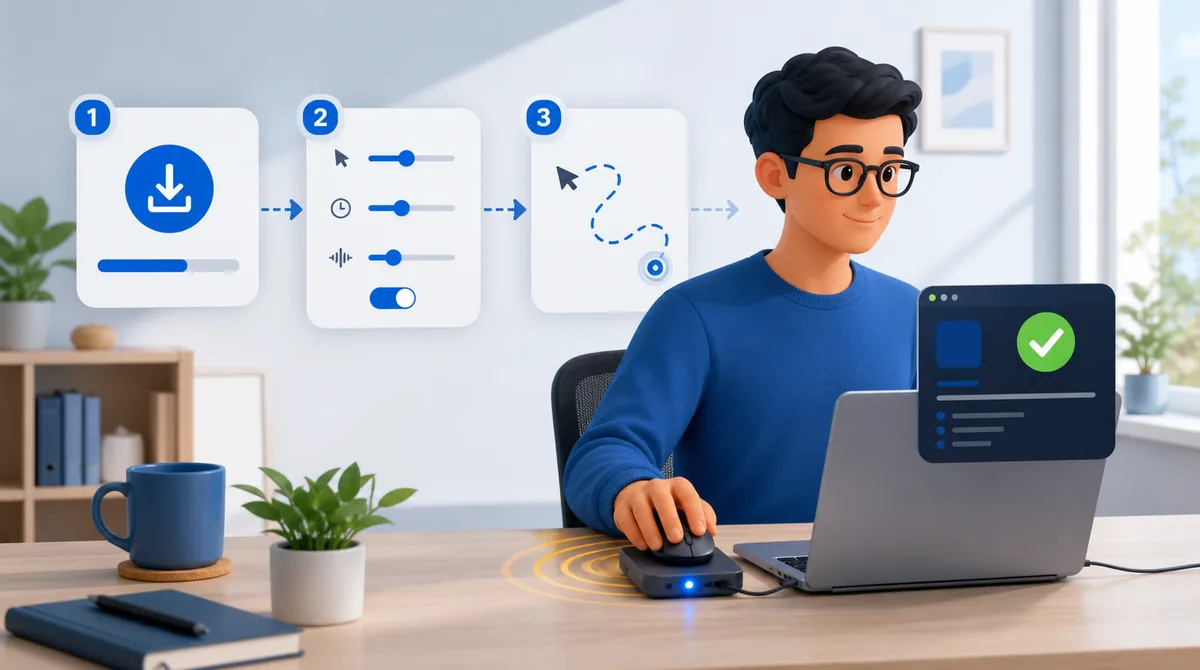
To use a mouse jiggler, first define the idle problem, choose the right type, start with modest activity, and test the exact result for 15 minutes. A browser tool keeps a screen awake. A mechanical mover moves your real mouse. A USB dongle acts like a pointing device. Software can generate mouse, keyboard, scroll, and app activity. They are not interchangeable.
The most common mistake is starting the tool before deciding what success means. A moving cursor may stop sleep but fail to keep a work app active. A multi-feature app may keep an activity meter busy but type into the wrong window. This guide helps you choose the minimum setup that solves the real problem while understanding what it can expose on a work computer.
Table of Contents
Key takeaways
- Pick by outcome: awake screen, active presence, or broader input. Do not pick by the word “jiggler” alone.
- Start with mouse movement only and add other activity types only when the workflow needs them.
- Use modest, irregular timing. Constant or perfectly repeating activity is unnecessary and less credible.
- Test with no sensitive field focused. Clicking, keyboard, scroll, and app-switching features can affect real work.
- Hardware, software, and browser tools leave different traces. None is universally undetectable.
Before You Use a Mouse Jiggler
Start by writing one sentence: “I need the computer to ___ while I am ___.” A useful answer might be “keep the screen awake during a long dashboard,” “avoid an Away status while reading printed files,” or “stop a remote session from timing out during a build.” That sentence tells you which input matters.
If the goal is simply changing a personal computer's power behavior, check the operating system first. Microsoft places Windows 11 screen and sleep controls under Settings > System > Power & battery > Screen, sleep, & hibernate timeouts. An official setting is cleaner than simulated input when you are allowed to change it.
On a managed work computer, policy is part of the setup. A technical method can work and still violate rules about unapproved peripherals, software, automated input, or time reporting. Separate “can it work?” from “may I use it?” before plugging in or running anything.
Protect the active window
Save open work and close terminals, payment forms, chats, and documents where a click or keystroke could cause damage. Mouse-only movement is relatively contained. Automatic clicks, typed characters, scrolling, browser-tab switching, and application switching interact with whatever has focus.
Observe the baseline
Let the machine sit untouched once. Record when the screen dims, sleep begins, the lock screen appears, Teams or Slack changes status, or a time tracker records idle time. Without a baseline, you cannot tell which behavior the jiggler changed.
Choose the Right Mouse Jiggler Type
| Your goal | Best starting method | Why | Important limit |
|---|---|---|---|
| Keep the display awake | Power setting or browser wake lock | No synthetic mouse or keyboard input needed | May not affect Teams, Slack, or activity trackers |
| Prevent a basic Away status | Mechanical, USB, or software movement | Creates desktop input that can reset idle | Other presence signals may have priority |
| Keep a real mouse moving without an app | Mechanical mover | The computer sees the existing mouse | Physical device is visible and motion may repeat |
| Simple plug-and-run movement | USB jiggler | Acts like a pointing device | Device installation can be logged or blocked |
| Mouse plus keyboard, scroll, or apps | Software jiggler | Multiple activity signals and adjustable timing | Process and behavior may be visible |
The complete primer on what a mouse jiggler is explains how each category generates input. If you are deciding between physical and digital tools, use the deeper hardware versus software comparison.
How to Use a Mouse Jiggler in Seven Steps
1. Define the outcome
Choose one primary result: screen on, session unlocked, presence active, or broader activity. Do not start with every feature enabled. A narrow goal makes testing safer and makes failures easier to diagnose.
2. Choose the jiggler type
Use a wake lock for screen-only needs, a mechanical mover when you want the computer to see the existing mouse, a USB device for simple hardware movement, or software for configurable and multi-signal activity. Consider both capability and workplace restrictions.
3. Prepare a controlled test
Save work, close sensitive input fields, note the baseline idle time, and choose a low-risk test window. Keep the cursor away from destructive buttons. If the tool supports clicking or keyboard activity, leave those features off initially.
4. Start with conservative settings
Use occasional, irregular movement rather than a continuous circle or fixed one-second pattern. The minimum activity that resets the real idle threshold is enough. More movement is not automatically more effective.
5. Enable one activity type first
Begin with mouse movement. Add scrolling, keyboard, clicking, or app switching one at a time only if the target system needs them. This isolates which signal matters and limits accidental interaction.
6. Run a 15-minute verification
Watch the real cursor, screen, lock timer, presence state, focused window, and any tracker you are authorized to test. Verify the pointer remains inside valid monitor boundaries and the computer behaves normally when you return.
7. Stop and review
Stop the jiggler and confirm normal idle behavior returns. Review whether it solved the intended problem, whether it created distracting input, and whether the device, process, or activity pattern fits the policy and risk you accepted.
How to Use a USB Mouse Jiggler
- Choose an approved or personal computer and an available USB port.
- Close sensitive windows and note the current idle behavior.
- Plug in the dongle and wait for Windows to recognize it as an input device.
- If it has modes, select the slowest or least intrusive movement first.
- Watch the pointer for 15 minutes and confirm it stays within the screen and does not interfere with real mouse use.
- Unplug it when the test or task is finished.
A USB jiggler is simple, but “driverless” does not mean “unrecorded.” Microsoft documents that Windows writes Plug and Play device installation information to SetupAPI.dev.log. Device-control tools can also inventory or block unfamiliar peripherals. Read how USB jigglers can be detected before using one on a managed laptop.
How to Use a Mechanical Mouse Mover
- Place the mover on a level, stable surface with room for its rotating pad or motion mechanism.
- Set your normal optical mouse on the active area so the sensor can read movement.
- Connect the mover to wall power or a personal power source when possible, rather than the work computer.
- Start its slow mode and confirm the cursor moves without falling off-screen or activating screen corners.
- Test whether lifting the mouse immediately returns full manual control.
A mechanical mover avoids adding a new input device or software process to the computer. It is still physically obvious, can make noise, and often produces a recognizable repeating path. The mouse mover versus mouse jiggler guide compares that method with USB and software options.
How to Use an Online Mouse Jiggler
- Open the online mouse jiggler in a modern browser over HTTPS.
- Press Start and confirm the page reports that the wake lock is active.
- Keep the page visible, or use its supported mini-player when you need another window in front.
- Press Stop when finished, then verify normal screen timeout resumes.
Online tools use the Screen Wake Lock API. That API tells the operating system not to dim or lock the display while a visible document needs it. It does not create real mouse or keyboard input. The wake lock may also be released when the page becomes inactive, the battery is low, or platform policy refuses it.
This is the cleanest option for reading, presentations, live dashboards, recipes, and other screen-awake tasks. It is the wrong option when your actual target requires desktop input. Do not mistake “screen stayed on” for “Teams received activity.”
How to Use Mouse Jiggler Software
- Download the app from its official source and verify the operating system and version.
- Run it in a low-risk window. Portable software may start without an installer, but it is still an application process.
- Enable mouse movement only. Choose a modest speed, distance, and irregular interval.
- Save the settings and test the cursor across every connected display.
- Add keyboard, scrolling, clicking, or app switching one feature at a time if the workflow requires it.
- Use an idle-detection feature, when available, so automation stops when you return.
- Stop the app and verify the settings do not continue after you close it.
Mouse Jiggler for Windows is a portable application, while the Linux edition uses an AppImage. The product documentation explains its mouse, clicking, keyboard, scroll, app-switching, idle-detection, and AI modes. The same safety rule applies to every multi-feature tool: additional signals create additional ways to interact with the wrong window.
Settings for Common Work Situations
| Situation | Start with | Avoid | Verify |
|---|---|---|---|
| Reading or reviewing documents | Slow, occasional mouse movement | Clicking and keyboard input | Cursor does not cover or select content |
| Keeping a dashboard visible | Screen wake lock | Unneeded synthetic input | Wake lock remains active when window state changes |
| Microsoft Teams presence | Irregular system-level movement | Assuming a lit screen means Available | Status from another client after 15 minutes |
| Long build, render, or download | Power setting or wake lock first | Typing into tools or terminals | Task continues when display would normally sleep |
| Activity tracker authorized test | Mouse only, then one signal at a time | Perfect flat activity or nonstop input | Actual report, screenshots, and idle calculation |
| Multi-monitor workstation | Small bounded movement | Large paths and hot corners | Every display boundary and scaling setting |
For Teams specifically, see the dedicated mouse jiggler for Microsoft Teams guide. It separates desktop activity from calendar, meeting, mobile, and manual presence states.
Common Mouse Jiggler Setup Mistakes
Using the wrong tool for the outcome
A browser tool cannot produce system input. A USB dongle usually cannot type or switch apps. A mechanical mover cannot know you returned. Match capability to the signal instead of expecting every jiggler to solve every problem.
Moving constantly
Continuous movement can be distracting and creates an unnaturally flat pattern. Find the real idle threshold and use less activity than your first instinct. Human work contains pauses.
Enabling clicks or keys too early
A click can submit a form, move focus, pause media, or activate a button. A keystroke can alter a document, chat, terminal, or password field. Start with movement and add risk only when the result requires it.
Ignoring multiple monitors
Scaling, screen arrangement, and hot corners can make a path harmless on one display and disruptive on another. Test every edge and confirm the pointer never jumps into a control you did not intend to touch.
Leaving it running after return
Automation fighting your real mouse is both irritating and obvious. Use a clear stop shortcut or idle-detection mode. Your return should immediately take priority.
Testing only the cursor
The cursor is not the outcome. Check the lock screen, presence app, session, report, or long-running task that motivated the setup. If that behavior does not change, movement alone is not solving the problem.
Can an Employer See the Setup?
Possibly. A USB device can create device-installation records. A software app can appear in process or application inventory. A mechanical mover may avoid both but remain physically visible and behaviorally repetitive. A browser wake lock leaves no synthetic input to detect, but that is also why it cannot satisfy an input-based tracker.
Monitoring can happen above the input layer. Screenshots, application history, mouse-to-keyboard balance, perfectly flat activity, long breakless periods, and output review can all matter. No setting converts automation into real work context. The employee-side detection guide explains what companies can actually see by monitoring tier.
Keep use proportionate and policy-aware. Preventing a screen from locking during a presentation is different from falsifying hours, but rules may still restrict both unapproved hardware and software. If the policy is unclear, ask about the idle or power problem directly rather than promising a particular tool is invisible.
How to Use a Mouse Jiggler FAQ
How do you use a mouse jiggler?
Choose a type that matches the goal, start with modest movement, and run a controlled 15-minute test. Verify the actual screen, lock, presence, or tracker behavior instead of watching only the cursor. Stop the tool and confirm normal idle behavior returns.
Do you plug a mouse jiggler into the computer?
Only a USB dongle plugs into the computer as an input device. A mechanical mover sits under a normal mouse, an online tool runs in a browser, and software runs as an application. Each method has different capabilities and traces.
How often should a mouse jiggler move?
There is no universal interval. Observe the real idle threshold and use the minimum irregular activity that reliably resets it. Constant movement and perfectly fixed timing create noise without adding useful protection.
Can I use a mouse jiggler without installing software?
Yes. Mechanical devices, USB dongles, online wake locks, and portable apps can all avoid a traditional installer. That does not make them equivalent or invisible: browser tools lack system input, USB devices create records, and portable apps still run as processes.
Will a mouse jiggler keep my computer from locking?
It usually stops an ordinary inactivity-based sleep or lock by resetting the input timer. It may not override a forced security policy, laptop-lid action, remote-session rule, or a lock that already occurred. Test the exact computer rather than relying on a generic claim.
Can a mouse jiggler type into the wrong window?
A mouse-only tool cannot type. Software with keyboard, clicking, scrolling, or app switching can affect the focused window, so close sensitive forms, terminals, and chats during setup. Add those features one at a time only when needed.
Can an employer see that I use a mouse jiggler?
Possibly. Hardware can leave device records, software can appear in inventory, and patterns can be reviewed through screenshots, activity reports, or output. No category is universally undetectable.
What is the safest way to test a mouse jiggler?
Use an unlocked test window with no sensitive fields, start with movement only, and watch it for 15 minutes. Verify the cursor stays in bounds, nothing clicks or types unexpectedly, and Stop works immediately. Then check whether the intended idle problem was actually solved.
Sources and Method
Primary references for platform behavior: Microsoft Support: Windows 11 power settings, Microsoft Learn: SetupAPI device installation logs, and MDN: Screen Wake Lock API. Product steps were checked against the current Mouse Jiggler download and documentation pages. Capabilities vary by device, client, browser, and organization policy.
The Bottom Line
The smart way to use a mouse jiggler is not to turn everything on. Define the result, choose the smallest suitable method, test one signal at a time, and verify the real idle behavior. That produces a calmer, safer setup and makes the tool's limitations obvious before they matter.
Ready to test a configurable software jiggler?
Mouse Jiggler is portable on Windows and Linux, with mouse, keyboard, scrolling, app activity, and a seven-day trial. Start with mouse movement and build only the setup you need.
Download and Start the TrialCompare plans

