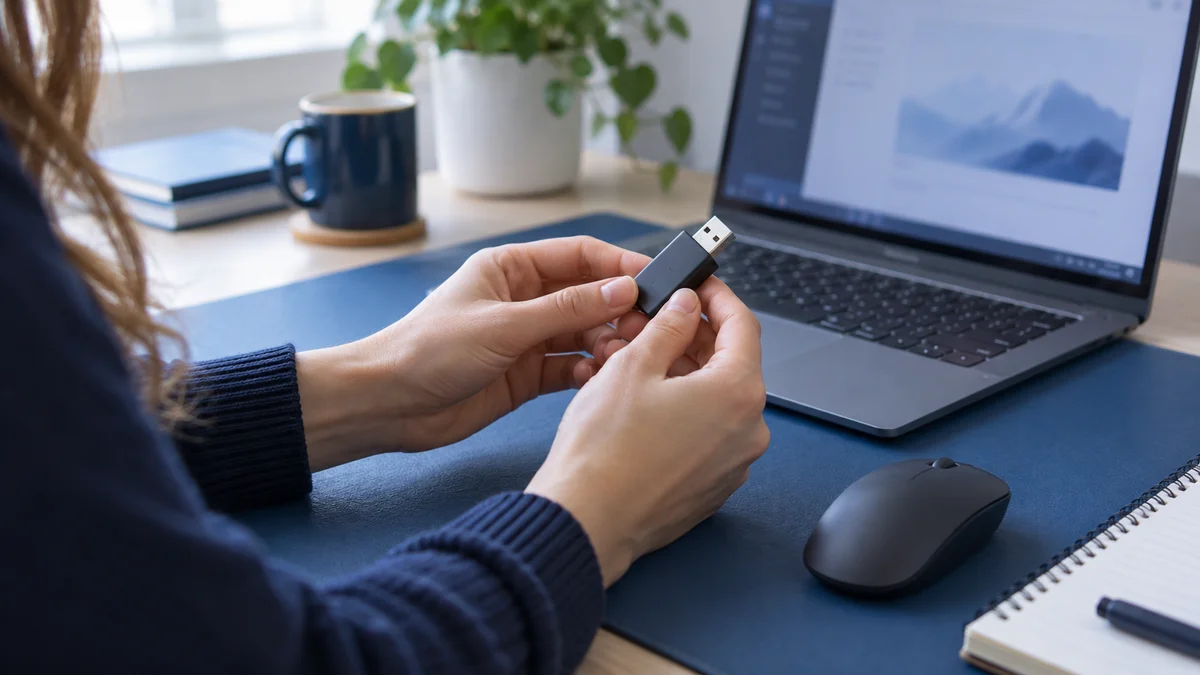
A mouse jiggler is not automatically malware, but “safe” depends on the specific software or device, the permissions it needs, and how you use it. A trustworthy utility can still interfere with work or violate a workplace rule. A device that avoids installing an app is not automatically private or approved.
Before downloading or connecting anything, separate four questions: Is the product trustworthy? Can it cause unintended actions? What information can it access? Is this use permitted on this computer? This guide helps you evaluate those questions without pretending that one antivirus result or a product label settles all of them.
Key takeaways
- Security, privacy, operational safety, and workplace permission are different tests.
- Use the original publisher or a verified distribution channel, not a lookalike download page.
- Keep security protections enabled and investigate warnings instead of dismissing them.
- Mouse movement, clicking, typing, and window switching have different side effects.
- A keep-awake setting may solve your problem without adding input automation.
In this guide
- What Does “Safe” Actually Mean?
- How to Evaluate a Mouse Jiggler Download
- What If Windows Blocks the File?
- Which Permissions Should Make You Pause?
- Are USB and Mechanical Mouse Jigglers Safer?
- Is an Online Mouse Jiggler Safer Than a Download?
- The Often-Missed Risk: Unintended Actions
- Safe Software Can Still Be Unapproved at Work
- A Practical Pre-Use Safety Checklist
- Frequently Asked Questions
- The Bottom Line
What Does “Safe” Actually Mean?
A safety claim should identify the risk it addresses. “No installation” describes a packaging choice. “No USB connection” describes one device pathway. “Runs locally” describes part of an architecture. None of these phrases proves that every other risk has disappeared.
| Safety question | What to inspect | What does not settle it |
|---|---|---|
| Could it contain unwanted software? | Publisher, source, release file, security warnings | A polished download page |
| Could it alter my work? | Enabled movement, clicking, typing, and switching modes | A promise that it is lightweight |
| Could it expose information? | Permissions, privacy policy, data behavior | The word “portable” |
| Could its use cause a workplace problem? | Device policy and explicit approval | A technically successful test |
Keep these checks separate when comparing options. A mechanically simple tool may reduce software-installation concerns but still move the pointer when you do not want it to. An app may provide a convenient pause button but ask for permissions that deserve scrutiny.
For a description of the different mechanisms, start with how mouse jigglers work. The rest of this page assumes you know whether you are evaluating software, a USB device, a mechanical mover, or a browser tool.
How to Evaluate a Mouse Jiggler Download
Begin at a publisher you can identify. Check the address carefully, then follow its own download link. Search ads, copied names, file-sharing mirrors, and “download manager” wrappers can make it difficult to know whether the file came from the developer you intended.
Look for a clear product description, supported operating systems, version history, documentation, and a way to contact the publisher. None is a guarantee, but together they make a claim easier to evaluate. A page that offers a mystery executable and no explanation gives you much less to verify.
If a publisher supplies a checksum, use it to compare the downloaded file with the published release. A matching hash supports file identity; it does not prove the software is harmless. Likewise, a digital signature is evidence about the signer and file integrity, not a blanket safety certificate.
Open-source code can help knowledgeable reviewers inspect behavior, but the source repository and the downloaded binary still need a trustworthy connection. Do not assume that a file named after a public project was built from that project’s code. Prefer the release channel linked by the maintainers.
What If Windows Blocks the File?
Stop and inspect the warning rather than immediately choosing a bypass. A reputation warning, a potentially unwanted application warning, and a malware detection do not necessarily mean the same thing. Preserve the exact wording, publisher identity, file source, and version when asking for help.
Microsoft’s potentially unwanted applications guidance explains that this category can include software that causes ads, slowdowns, or unwanted additional installations. Windows Security includes reputation-based protections. Leave those protections enabled while you investigate.
Do not turn off antivirus, add a broad exclusion, or run the file as administrator merely because an anonymous comment says the warning is normal. Ask the publisher for a specific explanation and, on a work device, involve IT. An unresolved warning is a reason to choose another approved approach.
A clean scan is useful evidence, not certainty. It does not tell you whether a tool’s permissions are appropriate, whether it will misclick in your workflow, or whether your employer permits it. Those questions still need their own answers.
Which Permissions Should Make You Pause?
Ask how each requested permission relates to the feature you want. Pointer control, accessibility access, screen capture, browser-site access, and administrator privileges are different capabilities. A request should have a concrete explanation, not simply “required for the best experience.”
A browser extension deserves particular attention to the sites it can access and what it does on them. A utility used for one limited task should not receive broad access just because you clicked through a prompt quickly. Read the permission dialog before granting anything.
For a desktop app, check whether the documentation explains startup behavior, background operation, network communication, licensing, and how to stop or uninstall it. A paid app may contact a service for activation; that does not automatically make it unsafe, but it should be disclosed rather than hidden behind a vague “offline” claim.
We do not certify an app as zero-data or secure from its marketing page alone. For our own Mouse Jiggler software, review the current documentation and privacy policy alongside the feature list. Apply the same scrutiny to a product sold on this site as you would to another publisher’s tool.
Are USB and Mechanical Mouse Jigglers Safer?
They change the risk profile rather than removing risk. A USB device attaches to the computer as hardware. A mechanical mover acts on the mouse externally. Neither form factor alone tells you everything about the device’s quality, behavior, or suitability for a managed workplace.
Use an identifiable supplier and inspect the device and cable for damage. Follow the manufacturer’s power instructions. Do not connect an unknown peripheral you found or received unexpectedly to a work computer just because it resembles an input device.
If a mechanical mover can be powered independently, that can separate its power source from a computer data connection. It does not make the resulting pointer movement invisible, nor does it establish that the device is approved. Keep the distinction between connection method and policy clear.
The hardware-versus-software comparison covers form-factor tradeoffs. For visibility specifically, use the USB detection guide; this page’s security checklist is not an undetectability guide.
Is an Online Mouse Jiggler Safer Than a Download?
A no-download page can avoid adding a desktop executable, but you still need to understand what the page does. Do not grant unrelated notification permissions, install a suggested extension, or download a “required helper” without reassessing the choice. That is a different setup from simply opening a page.
Many browser keep-awake tools rely on a screen wake lock. MDN’s API documentation describes a mechanism for keeping the display awake, with conditions such as document visibility and system constraints. It does not mean that a website moves the operating-system pointer or generates keyboard activity.
If keeping a visible display awake is enough, that narrower mechanism may be preferable to input automation. If the page claims to do much more, look for a clear explanation. A feature mismatch is not solved by trusting the “online mouse jiggler” label.
The Often-Missed Risk: Unintended Actions
Not every problem is malware. A legitimate utility can be configured in a way that interferes with your work. Pointer movement can disrupt a selection; automatic clicking can activate a control; typing can enter text into the wrong window; app switching can expose something you meant to keep closed.
Start with the least powerful mode. If you need only pointer movement for an approved test, leave clicking and typing disabled. Do not enable every feature merely because the product provides it. More activity is not the same as more safety.
Keep payment forms, administrative consoles, messaging windows, live customer records, and unsaved important documents out of a test. Learn the pause control before starting. Stop the tool before returning to sensitive work rather than assuming it will always recognize the context.
For keyboard-specific side effects, see the keyboard jiggler guide. The important boundary is between a supervised, limited test and unattended input in a changing interface.
Safe Software Can Still Be Unapproved at Work
A product can be legitimate software and still conflict with your organization’s device or time-recording rules. A company may restrict downloaded utilities, USB peripherals, accessibility permissions, or tools that affect activity reporting. Technical availability is not authorization.
Ask about the underlying need. “My computer sleeps during an approved long-running task” is different from “I need my activity graph to look busier.” The first may be solved through a power setting or an IT-approved utility. The second is a reporting problem that input automation cannot accurately explain.
Do not rely on promises that an employer cannot find out. Detection and contextual review depend on the environment. Our employer-visibility guide covers those limits without claiming that any product guarantees immunity from workplace consequences.
A Practical Pre-Use Safety Checklist
- Define the task. Decide whether you need display wakefulness, system wakefulness, or actual input.
- Confirm permission. Check the rules for this device and use case.
- Verify the source. Use the original publisher or approved distribution channel.
- Review warnings and permissions. Resolve uncertainty before running the tool.
- Test one mode. Use a disposable workspace and remain present.
- Test the stop control. Confirm the tool stops and normal input resumes.
- Set an end point. Avoid leaving automation running beyond the intended task.
- Restore the normal setup. Review startup settings and remove tools you no longer use through the normal uninstall process.
If you already ran something suspicious, stop using it and contact IT on a managed device. Follow the organization’s incident process instead of deleting logs or uploading company files to public analysis services. Record where the download came from and what happened without spreading sensitive data.
Frequently Asked Questions
Are all mouse jigglers malware?
No. Mouse jiggling is a function, not a malware classification. Evaluate the actual publisher, file, permissions, and behavior. A familiar product name on an unrelated download site is not enough verification.
Is a portable mouse jiggler automatically safe?
No. Portable usually describes how the program runs without a conventional installation. It can still execute code, request access, and affect your session. Review it as carefully as an installed application.
Should I disable antivirus to run a jiggler?
Do not disable protection just to get past a warning. Identify the warning and verify the release with the publisher or IT. If the concern cannot be resolved, use another approved approach.
Does a clean malware scan prove workplace use is safe?
No. A scan does not establish permission or predict every side effect. A legitimate app can still click the wrong control or conflict with company policy. Security review and workplace approval are separate checks.
Is a mechanical mover risk-free?
No. It avoids some software-installation concerns but still moves a real pointer and relies on physical hardware. Check product quality, setup, power instructions, and workplace rules. Its form factor does not guarantee invisibility.
What is the lower-complexity option if I only need the screen on?
Start with an approved display or power setting, or an appropriate keep-awake utility. Do not add clicking or typing unless the task genuinely requires it. A narrower solution usually gives you fewer behaviors to supervise.
The Bottom Line
Evaluate the exact product and the exact use. Verify its source, understand its permissions, limit its actions, and confirm it is allowed. The safest decision may be a trusted, supervised tool—or no jiggler at all when an approved power setting solves the problem.
Method: linked Microsoft and MDN documentation checked September 18, 2026. This is a decision checklist, not a malware scan, certification, or hands-on test of every named product category.
Choose only the activity modes you need
Mouse Jiggler offers configurable activity modes. Check the documentation, test in a safe window, and use it only where permitted. No mode guarantees invisibility.
Get Mouse JigglerRead the documentation

