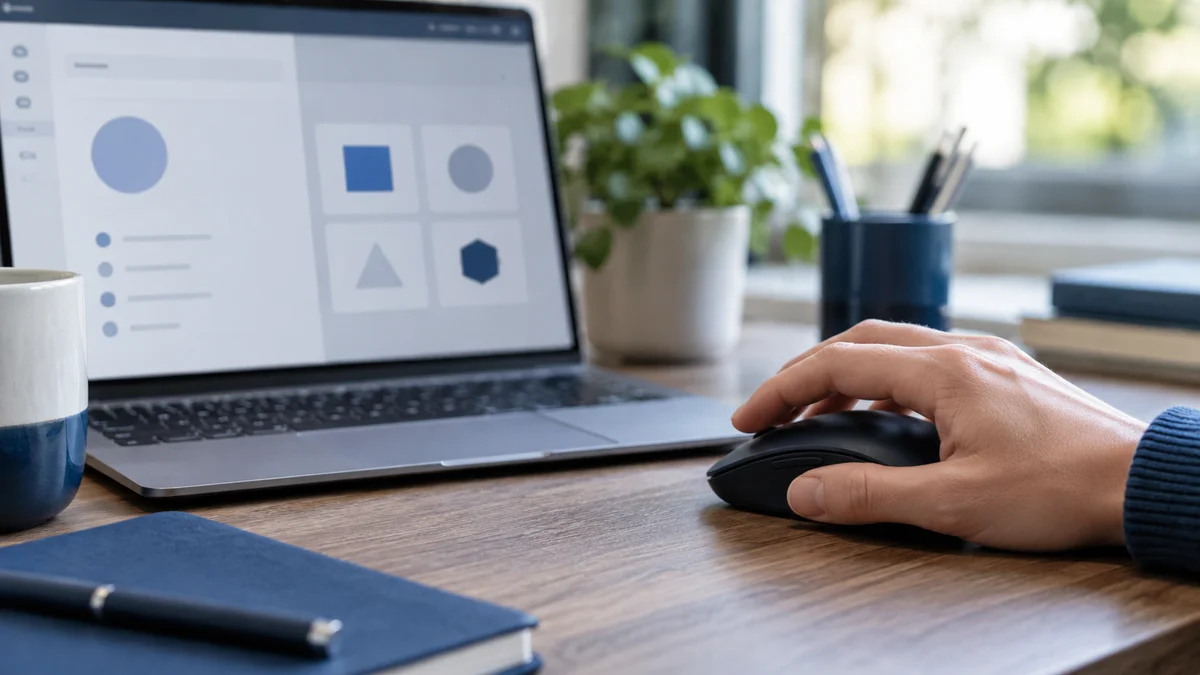
A mouse jiggler generates pointer movement; an auto clicker generates mouse-button actions. Some apps combine both, but the actions are not interchangeable. Movement can interfere with where the pointer rests. A click can submit a form, send a message, select a control, or begin a process.
If you simply want a display to stay awake, neither action may be necessary. If you need accessibility assistance or an approved repetitive test, the choice depends on the task and the controls around it. This comparison explains the practical differences from the user’s side, without assuming that more automation is better.
Key takeaways
- Moving a pointer and activating what is under it are different operations.
- Check enabled modes rather than trusting a product’s name.
- Click automation needs a predictable target, a stop control, and a limited scope.
- Accessibility dwell clicking is not the same as an unattended rapid-click loop.
- Neither tool guarantees a green status, productive work, or invisibility.
In this guide
- Mouse Jiggler vs Auto Clicker: At a Glance
- What Pointer Movement Can and Cannot Do
- What an Auto Clicker Adds
- Accessibility Clicking Is a Different Use Case
- For Keeping a Computer Awake, Start With Power Controls
- Which Option Fits These Common Situations?
- Why Auto Clickers Deserve Extra Caution at Work
- How to Run a Limited, Approved Test
- Is Clicking Harder to Detect Than Movement?
- Frequently Asked Questions
- The Bottom Line
Mouse Jiggler vs Auto Clicker: At a Glance
| Question | Mouse jiggler | Auto clicker |
|---|---|---|
| Primary action | Produces pointer movement | Produces mouse-button events |
| Typical control | Movement amount and timing | Button, target, interval, and repeat count |
| Main user concern | Pointer interference | Activating the wrong control |
| Reasonable scoped use | Permitted input or idle-behavior testing | Approved repetitive UI testing or supported accessibility use |
| What the label does not tell you | Whether clicking or typing is also enabled | Whether the target is fixed, follows the pointer, or changes |
| When to avoid it | When movement disrupts the task | When the interface or consequences are unpredictable |
A multi-mode application may offer both behaviors. That does not make them equally appropriate for a given job. Think of them as separate switches with separate consequences. Review the active configuration each time the purpose of the session changes.
Our mouse jiggler definition guide explains hardware, software, and mechanical forms. Here, the distinction is what the input does—not whether the tool is a dongle, an executable, or a feature inside another application.
What Pointer Movement Can and Cannot Do
Pointer movement changes position or generates movement events according to the mechanism used. It does not inherently press a button. A movement-only setup should therefore not be described as a clicker, even if both kinds of tool are marketed for keeping a computer active.
Movement still has side effects. It can get in the way when you select text, use a drawing tool, hover over a menu, or perform a precise operation. A utility that pauses when you resume work can reduce interference, but you should verify the behavior rather than assume it.
Operating systems and applications do not all interpret input in exactly the same way. Whether a generated movement affects a particular idle state is a compatibility question, not a universal promise. Test the relevant behavior in an approved environment with no important work at risk.
Do not confuse pointer motion with completion of a task. A moving cursor does not say whether a document was read, a customer was helped, or a decision was made. It is an input signal, not a record of useful output.
What an Auto Clicker Adds
An auto clicker sends button actions. Depending on the tool, it may act at the current pointer position, a saved coordinate, or a selected target. Those choices matter: a coordinate that was harmless a moment ago can point to a different control after a window moves or a page changes.
Some clickers repeat indefinitely until stopped. Others allow a fixed count or a limited sequence. For permitted testing, bounded actions are easier to review than an open-ended loop. A clearly visible stop mechanism is essential regardless of the timing configuration.
Double-clicking, right-clicking, dragging, and scrolling also have distinct effects. Do not assume that a “mouse automation” option means only a harmless left click. Read the documentation and enable only the operation you need.
Accessibility Clicking Is a Different Use Case
Automatic clicking can be an accessibility feature. Google’s Chromebook automatic-click guide describes dwell clicking: the user positions the pointer and an action occurs after it stays still for a chosen interval. It includes action choices and a pause option.
That is different from leaving a rapid-click loop running without supervision. The user is intentionally selecting a target through an alternative interaction method. Accessibility needs deserve suitable controls and support, not a blanket assumption that every automatic click is an attempt to fake work.
If your goal is to reduce difficult or uncomfortable physical clicking, start with the operating system’s supported accessibility options and your organization’s accommodation process. Explain the interaction you need help with. A purpose-built feature may provide a better fit than a generic automation utility.
Do not add mouse movement that fights an accessibility control. A dwell-clicking feature depends on where the pointer rests, so a separate movement tool can undermine the intended interaction. Test combinations carefully with the relevant support person.
For Keeping a Computer Awake, Start With Power Controls
A long download, presentation, or supervised background job may need the computer or display to remain awake without any synthetic clicks. Microsoft’s PowerToys Awake documentation describes requesting an awake power state, with a separate display option. It is not a substitute for real keyboard or mouse activity.
Browser screen-wake tools are another separate mechanism. They can help with a visible page under supported conditions, but a screen that stays on is not evidence that a work application sees you as active. Choose the mechanism that matches the actual interruption.
For a job that must continue while you step away, preserve the normal security lock and ask for an approved power configuration. Do not leave a sensitive session exposed solely to preserve an indicator. Our free keep-awake options guide compares these narrower approaches.
Which Option Fits These Common Situations?
You are reading a long document
If the display turning off is the problem, use an approved display setting. Automatic clicks can move the reading position or activate links, which is unnecessary. If an activity report misunderstands reading time, explain the task through the normal reporting process instead.
You are testing a repetitive interface
Use an approved test environment with disposable data and a clear expected outcome. A bounded click sequence may be appropriate if the target remains predictable. For a changing interface, a test tool that checks application state may be more suitable than repeating clicks at a coordinate.
You want less physical clicking
Consider supported accessibility controls first. The goal is to let you intentionally operate the computer in a different way, not to perform unknown actions in your absence. A pause action and adjustable interaction delay matter more than the maximum click rate.
You are worried about a chat status
Neither tool guarantees a particular presence state across every client and setup. Calendar status, calls, locks, and application behavior can matter independently. A clear status message can tell coworkers more about your availability than generated input.
Why Auto Clickers Deserve Extra Caution at Work
Consider an illustrative sequence: a clicker is aimed at a harmless test control, then a notification or confirmation dialog appears at the same position. The next click may operate the new control. The automation has not understood that the task changed.
Similar problems can occur when a browser zoom level changes, a remote session reconnects, a window moves to another display, or an application loads a new page. Coordinate-based input depends on a stable layout. An actual business workflow rarely stays perfectly still forever.
Keep live payment screens, customer databases, email composers, administrative consoles, and important unsaved documents out of an input test. Do not rely on being able to undo every action. Some clicks initiate external side effects that are harder to reverse than moving a cursor back.
If you also enable keyboard simulation, the input surface grows again. Our keyboard jiggler guide explains focus and shortcut risks. Adding several modes together should be a deliberate choice, not a default configuration.
How to Run a Limited, Approved Test
- Define the expected action. Write down whether you need movement, one click, or a bounded sequence.
- Use disposable data. Keep the test outside live customer or payment workflows.
- Disable unrelated modes. Do not combine typing, clicking, and app switching by accident.
- Learn the stop control first. Confirm you can interrupt the tool immediately.
- Start with one action. Observe the result before increasing the count.
- Test the boundary. Verify what happens when the target loses focus or the session changes, using only harmless content.
- End the session explicitly. Stop the utility and verify normal control before returning to work.
Keep a short note of the configuration that worked. If the app or operating system changes, recheck the relevant behavior. A previous successful test is evidence about that setup, not a lifetime guarantee about every future version.
For installation and first-run basics, use the mouse jiggler setup guide. For publisher and permission checks before downloading either category, see the safety checklist.
Is Clicking Harder to Detect Than Movement?
There is no general rule that adding clicks makes automation invisible. It changes the signal and can add side effects, but it does not erase software inventory, device records, screenshots, or work context. Claims about guaranteed invisibility should not drive your choice.
Likewise, random intervals are a setting, not proof of human intent. Generated events do not explain whether useful work occurred. Use either category only within its approved scope rather than as a substitute for accurate time or task reporting.
Our Mouse Jiggler app offers configurable activity features; review the actual modes you intend to use and their documentation. Do not interpret a product recommendation as a claim that a tool is undetectable or authorized for your workplace.
Frequently Asked Questions
Is a mouse jiggler the same as an auto clicker?
No. A jiggler primarily creates movement, while an auto clicker sends button actions. Some applications combine both. Check which modes are enabled rather than relying on the name.
Can an auto clicker keep my computer awake?
Input may affect some idle behavior, but the result depends on the setup. Clicking can also activate unintended controls. If preventing sleep is the only goal, start with approved power settings rather than automatic button actions.
Is movement safer than clicking?
Movement usually has fewer direct activation effects, but it can still interfere with pointer tasks. Clicking adds the possibility of operating whatever is under the pointer. Judge the exact behavior and environment rather than declaring either category risk-free.
Are accessibility auto clicks the same as a rapid-click loop?
No. Dwell-clicking features let the user intentionally select a target by holding the pointer in place. They are designed as an alternative interaction method. Unattended repeated clicking is a different use case with different controls and risks.
Will adding clicks guarantee a green work status?
No. Presence is controlled by the application and session, not just by the existence of clicks. Use a clear availability message when that is what coworkers need. Do not treat synthetic input as a guarantee about any client.
What should I check before using either tool?
Confirm workplace permission, verify the publisher, and understand the enabled actions. Use a disposable test environment and learn the stop control first. Stop the tool before returning to sensitive work.
The Bottom Line
Use movement when a permitted task genuinely needs movement, and clicking only when an intentional, controlled action is required. For sleep prevention, consider power controls first. The right tool is the one that solves the actual problem with the fewest unnecessary actions.
Method: Google accessibility and Microsoft PowerToys documentation checked September 18, 2026. Workflow examples are illustrative risk analysis, not hands-on product benchmarks.
Choose only the activity modes you need
Mouse Jiggler offers configurable activity modes. Check the documentation, test in a safe window, and use it only where permitted. No mode guarantees invisibility.
Get Mouse JigglerRead the documentation

