The Mouse Jiggler for your Mac
A real menu bar app, not a browser tab. Mouse Jiggler keeps your Mac awake and your status active by simulating natural mouse, keyboard, and scroll activity. Built for Apple Silicon and Intel, macOS 11 or newer, with a free 7-day trial that needs only your email.
Download for Mac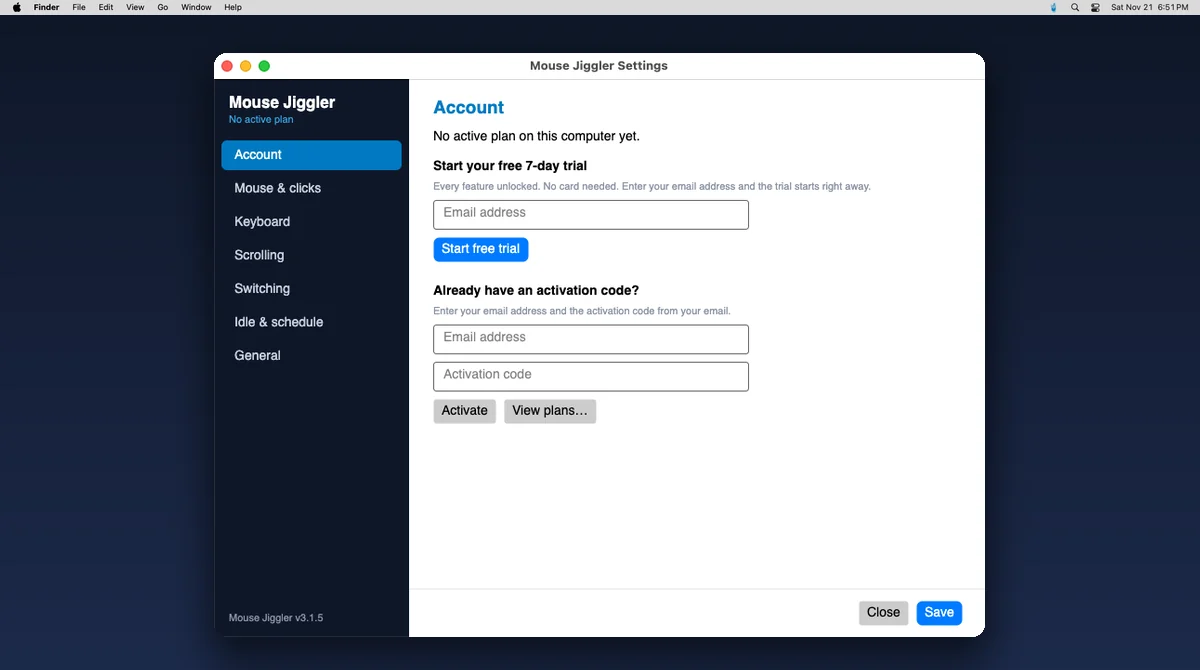
This is a beta. The Mac app is new and not yet notarized by Apple, so macOS blocks the first start until you allow it once, and asks for the Accessibility permission again after an update. The steps are below. If something does not work on your Mac, write to support@mouse-jiggler.org.
A jiggler that works the way a Mac does
Most "mouse jigglers" for Mac only stop the screen from sleeping. This one creates real pointer and keyboard activity, sits quietly in the menu bar, and stops when you come back.
Apple Silicon and Intel
Two native builds: one for Macs with an M-series chip and one for Intel Macs. Both run on macOS 11 Big Sur or newer, and every release is run through automated checks on Apple Silicon and Intel test machines.
Lives in the menu bar
No Dock icon and no window in your way. Start, stop and open the settings from the menu bar icon, or use Control + Option + A to start and Control + Option + X to stop.
Resets the real idle timer
The app sends input the way a real mouse does and tells macOS that the user is active. In our release checks the system idle counter drops from about 3 seconds to under half a second after one simulated move, so display sleep and the screen saver stay away.
Natural, not robotic
The pointer glides along a curved path at a changing speed instead of jumping between two fixed points. Plus+ adds typing, scrolling, and app and browser tab switching, so the activity is not mouse-only.
Stops when you come back
With idle detection on the Ultimate plan, the app starts after you have been away for the time you set and stops the moment you touch the real mouse or keyboard. Its own movements never count as you.
One account, every platform
Your plan works in the same app on macOS, Windows and Linux, on one computer at a time. Start the free trial on your Mac with only your email address; there is no card to enter and nothing is charged when it ends.
Download Mouse Jiggler for Mac
Version 3.1.8 (beta). Pick the build for your chip: Apple menu, About This Mac, then look at the Chip or Processor line. Every build includes the 7-day free trial.
.dmg · Apple Silicon
Recommended for Macs with an M1, M2, M3 or M4 chip. Open it and drag the app to Applications.
System requirements
- macOS 11 Big Sur or newer, on an Apple Silicon or Intel Mac.
- The Accessibility permission (Privacy & Security), which macOS requires before any app may move the pointer or type.
- An internet connection to start the trial and to check your plan. The app keeps working for up to three days offline.
- Nothing else to install: the app brings its own runtime. macOS may ask for your password when you allow the app.
- On a Mac managed by your employer, the organisation may block apps that Apple has not notarized. The app cannot run there.
Set it up in about two minutes
Five steps, most of them one click. The two macOS permission steps are only needed the first time.
Download the build for your chip
Take the Apple Silicon .dmg for an M-series Mac or the Intel .dmg for an Intel Mac. If you are not sure, open the Apple menu and choose About This Mac.
Drag it to Applications
Open the downloaded .dmg and drag Mouse Jiggler onto the Applications folder. Start at login only works once the app is in Applications.
Open it and allow it once
The first time, macOS says it could not verify the app ("Mouse Jiggler" Not Opened). Click Done, not Move to Trash. Then open System Settings → Privacy & Security, scroll down and click Open Anyway. On macOS 12 and older this is under System Preferences → Security & Privacy.
Allow Accessibility
macOS asks whether Mouse Jiggler may control the computer. In Privacy & Security → Accessibility, switch Mouse Jiggler on. Without it, macOS drops the simulated input.
Start the free trial
Click the Mouse Jiggler icon in the menu bar and open Settings. On the Account page, type your email address and press Start free trial. No code and no card. Then choose Start from the menu bar icon.
Why a mouse jiggler app and not caffeinate or Amphetamine
A Mac already has good tools for staying awake. The caffeinate command and apps such as Amphetamine hold off sleep for as long as you want, and for a long download or a presentation that is all you need. What they do not do is create input. To macOS, and to any app that asks the system how long the mouse and keyboard have been still, the Mac is awake but the person is idle.
That gap is what a jiggler fills. Mouse Jiggler sends real pointer events, so the system idle timer starts again from zero, and on the Plus+ and Ultimate plans it adds typing, scrolling, and app and tab switching, so the activity is not just a cursor twitching in one spot. It runs as a small menu bar app with a proper settings window: you choose what it simulates and how often, you can see whether it is running, and you stop it with one click or a shortcut.
If you are still choosing between approaches, our guide to hardware vs software mouse jigglers explains why a software jiggler leaves no USB device in the system logs, and the free mouse jiggler options page compares the built-in macOS settings, browser tools and apps by what each one actually keeps active.
What it's good at, honestly
Mouse Jiggler for Mac is good at one job: keeping the machine awake and showing ordinary-looking input while you step away, read on another screen, or sit in a long call. It keeps the display on, holds off the screen saver, and keeps input-based "active" indicators from flipping to idle.
It does not do your work, and it does not hide what is on the screen. Monitoring software that takes screenshots, records which apps and sites are in front, or measures output sees exactly what happened. Its randomized movement is designed to look like ordinary use, but no tool can promise that it will never be noticed. Our guides on whether employers can detect mouse jigglers and what keeps Microsoft Teams active go through the limits in detail.
Two things are specific to this beta. Apple has not notarized it yet, so the first start takes the extra step shown above, and a Mac that your company manages may refuse to run it at all. And macOS ties the Accessibility permission to the exact version of the app, so after an update you switch it on again. If you would rather not install anything, the free online mouse jiggler keeps the screen awake in any browser on a Mac, without creating system input.
Mac mouse jiggler FAQ
The questions Mac users ask most before downloading.
Is there a mouse jiggler app for Mac?
Yes. Mouse Jiggler has a native macOS app, currently in beta. It is a menu bar app built on .NET and Avalonia, not a browser tab or a script, and it comes as a .dmg for Apple Silicon and for Intel Macs running macOS 11 or newer. It simulates mouse movement, clicks, keyboard activity and scrolling, depending on your plan. Because it is a beta, it is not yet notarized by Apple, so the first start needs one extra step that is described on this page.
Does it work on Apple Silicon (M1, M2, M3, M4) and Intel Macs?
Yes, there is a separate build for each. Choose the Apple Silicon .dmg for any Mac with an M-series chip and the Intel .dmg for older Macs. To check which one you have, open the Apple menu, choose About This Mac and look at the Chip or Processor line. Every release is run through automated checks on Apple Silicon and Intel test machines. Both need macOS 11 Big Sur or newer.
Why does macOS say it cannot verify Mouse Jiggler?
Because this beta is not yet notarized by Apple and carries no Apple Developer ID signature. Notarization is the check macOS runs on apps downloaded from the internet. The first time you open it, macOS blocks it. Open System Settings, then Privacy & Security, scroll down and click Open Anyway (on macOS 12 and older this is under System Preferences, Security & Privacy). You only do this once per version. If your Mac is managed by your employer and that button is missing, the organisation has blocked apps like this and the app will not run there.
Why does Mouse Jiggler need the Accessibility permission?
macOS only lets an app move the pointer, click or type after you allow it under Privacy & Security, then Accessibility. Every app that controls the pointer needs this, including remote-desktop and automation tools. Mouse Jiggler uses the permission to send its simulated input and to notice when you touch the real mouse or keyboard again, so it can stop. It does not record what you type. While this beta is not notarized, macOS asks for the permission again after you update the app.
Will it keep my Mac awake and my status active?
It keeps the Mac awake: its simulated input resets the system idle timer, and it also tells macOS that the user is active, which holds off display sleep and the screen saver. Apps that decide whether you are active from mouse and keyboard input will see that input. What it cannot do is produce real work: a tool that takes screenshots or tracks which apps and documents you use still shows exactly what was on screen. No jiggler can guarantee it will not be noticed, so treat it as a way to stay awake and available, not as a disguise.
How is this different from caffeinate or Amphetamine?
caffeinate and Amphetamine stop a Mac from sleeping, and they do it well. They do not create any mouse or keyboard input, so an app that watches for input still sees you as idle. Mouse Jiggler creates real input events: natural pointer movement, and on higher plans clicks, typing, scrolling and switching between apps and browser tabs. If all you need is a screen that stays on, the built-in tools or our free online mouse jiggler are enough. If the idle timer is the problem, you need input.
What are the keyboard shortcuts on a Mac?
The Mac app uses Control + Option with a letter: A to start, X to stop, S for settings, T to save a safe click spot and Q to quit. The Windows and Linux apps use Alt with the same letters. A Mac uses Option with a letter to type special characters, so the shortcuts add Control to stay out of the way of normal typing. You can also do everything from the menu bar icon.
Is the Mac mouse jiggler free?
It comes with a 7-day free trial that needs only your email address and no card: type your email on the app's first screen and the trial starts. After that, the same plans apply on every platform: Starter at $7 a month, Plus+ at $12 and Ultimate at $15, with yearly plans that include two months free and a one-time lifetime plan. See the pricing page for the details. One plan covers one computer at a time.
Keep your Mac awake
Download the beta, start the free 7-day trial with only your email, and let Mouse Jiggler handle the rest. Apple Silicon and Intel, macOS 11 or newer.
Download for Mac

